Getting started
Hexagong runs in any modern browser at hexagong.net/app. Nothing to install — but you can install it as an app for offline use (see Offline & installing).
- In the left column, choose what to generate (for example Full Arrangement) and a genre.
- Press Generate (Ctrl/⌘ G). The result appears in the pattern editor.
- Press Space to listen. Change anything and generate again — Replace all tracks keeps the pattern tidy.
- Export with Ctrl/⌘ E (the whole song as MIDI) and drop it into your DAW.
Interface overview
The window has the menus and transport across the top, the generator on the left, the pattern editor or sequencer in the middle and the track and sound settings on the right. A status bar runs along the bottom. Hover or tap the points:
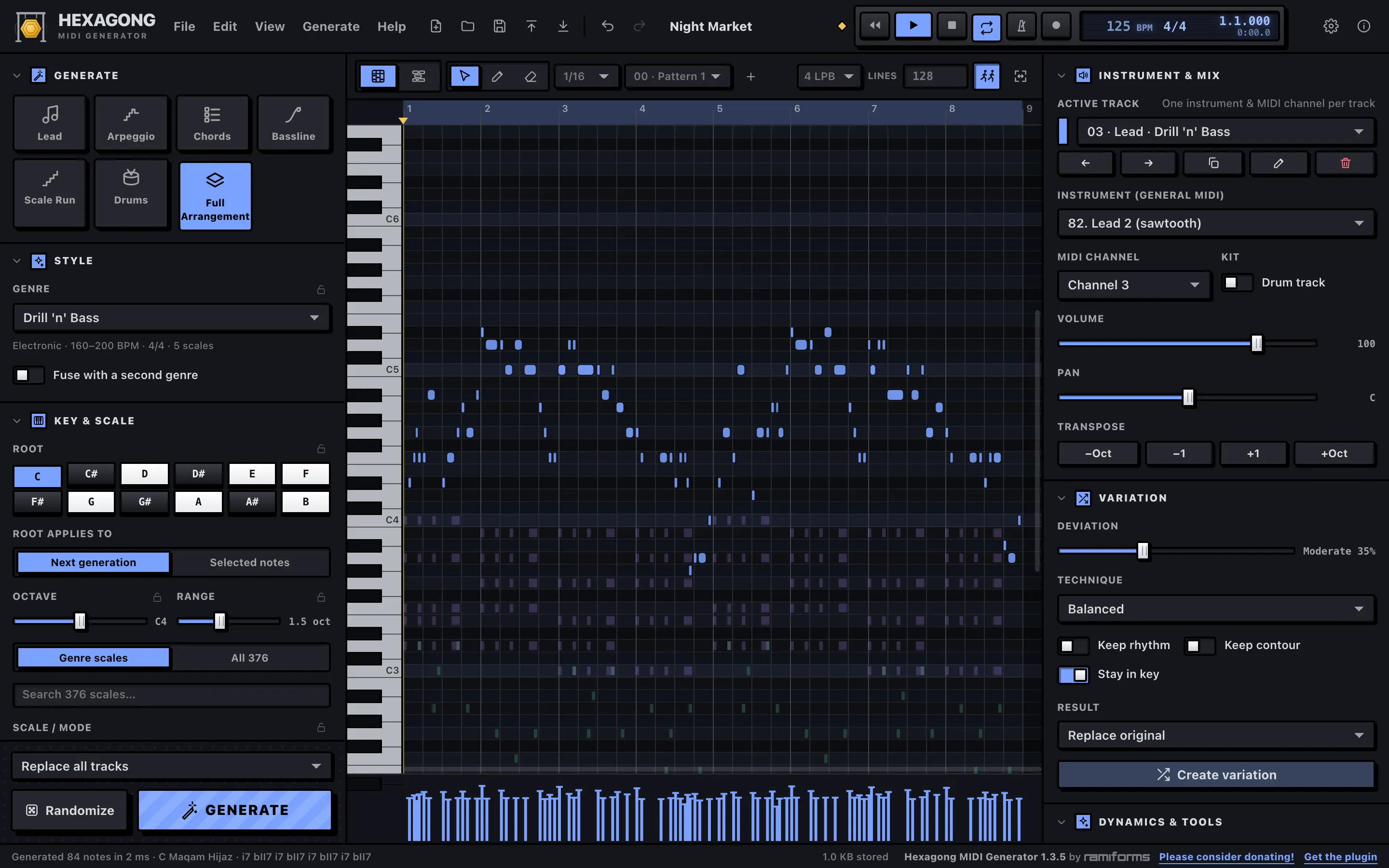
- 1Menus — File, Edit, View, Generate and Help: projects, exports, patterns and views.
- 2Quick actions — New, open, save, import MIDI, export, undo and redo, one click each.
- 3Transport — Play, stop, loop the pattern or play the whole song, metronome and step-recording from a MIDI keyboard.
- 4Tempo & position — Drag or type the BPM, set the time signature and watch bar · beat · tick.
- 5What to generate — Lead, arpeggio, chords, bassline, scale run, drums — or a full arrangement at once.
- 6104 genres — Each genre sets its own scales, tempo, swing and feel. Fuse two for hybrids.
- 7Key & scale — Root, octave, range and 376 scales and modes — or re-root the notes you selected.
- 8Where results go — Replace all tracks, only the active track, or drop the result into a brand-new pattern.
- 9Generate — Instant, seeded results. Randomize changes everything you have not locked.
- 10Pattern editor / Sequencer — Edit one pattern, or arrange patterns into a song (F2 / F4).
- 11Patterns — Pick any pattern (in the order you made them) or create a new one with +.
- 12LPB & length — Lines per beat and pattern length, shown in lines or bars (8–512 lines).
- 13Piano roll or tracker — Draw, drag and resize notes — or type them tracker-style with hex volume and delay columns.
- 14Velocity lane — Paint dynamics straight onto the notes.
- 15Track & instrument — One of 128 General MIDI instruments and one MIDI channel per track, plus volume and pan.
- 16Variations — Re-imagine a part from subtle to wild, keeping its rhythm, contour or key if you like.
- 17Resizable panels — Drag the grip to give the editor more room. Sizes are remembered.
Drag the grip on the inner edge of either side column to resize it (between about 16% and 25% of the window); double-click it to reset. With the grip focused, the arrow keys resize it too.
Top bar

| Control | What it does |
|---|---|
| Logo | The Hexagong logo strikes once when the app loads. |
| Menus | File, Edit, View, Generate and Help (see Menus). |
| Quick actions | New project, Open project, Save, Import MIDI, Export menu, Undo and Redo. |
| Project name | Click to rename. A small diamond means there are unsaved changes. |
| Return to start | Moves the cursor (and playback) to the start. Home |
| Play / Pause | Starts or pauses playback. Space |
| Stop | Stops playback; press again to return to the start. |
| Loop pattern | On: the current pattern (or a Shift-dragged loop range) repeats. Off: the whole song plays from the selected slot. L |
| Metronome | Clicks on every beat while playing. K |
| Step record | Notes played on a connected MIDI keyboard are entered at the cursor, which then moves on. |
| Tempo (BPM) | Drag up/down or type a value (20–400) and press Enter. |
| Time signature | Opens a popover with beats and beat unit, plus presets (4/4, 3/4, 6/8, 12/8, 5/4, 7/8, 9/8…). |
| Position & clock | Bar · beat · tick and elapsed time. |
| Online / Offline | Shows the connection state. The app works either way. |
| Install | Appears when the browser can install Hexagong as an app. |
| Settings · About | Open the Settings dialog and the About dialog (version, licenses and a Ko-fi support button). |
Menus
Menus open with a click; arrow keys move between items and menus, Esc closes them.
File
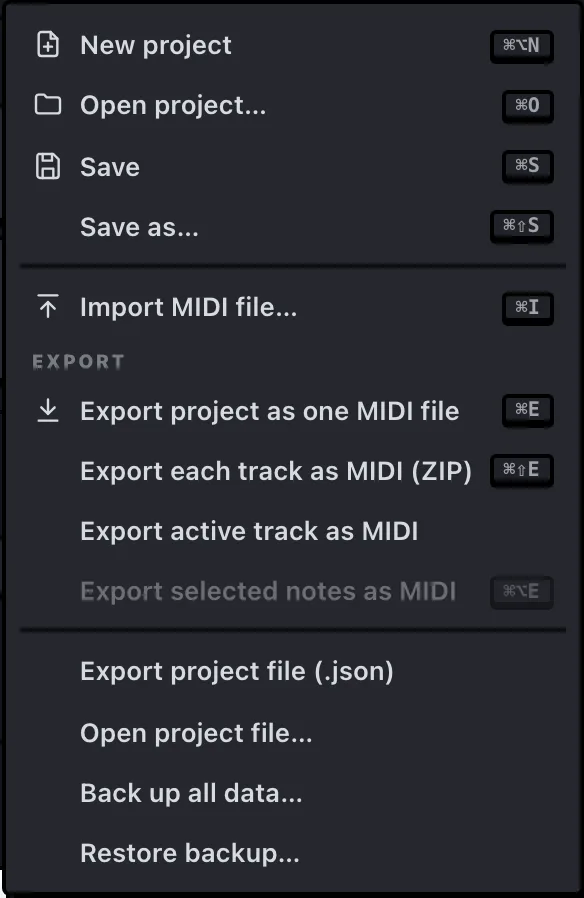
| Item | Shortcut |
|---|---|
| New project | Ctrl/⌘ Alt N |
| Open project… | Ctrl/⌘ O |
| Save | Ctrl/⌘ S |
| Save as… | Ctrl/⌘ Shift S |
| Import MIDI file… | Ctrl/⌘ I |
| Export project as one MIDI file | Ctrl/⌘ E |
| Export each track as MIDI (ZIP) | Ctrl/⌘ Shift E |
| Export active track as MIDI | — |
| Export selected notes as MIDI | Ctrl/⌘ Alt E |
| Export project file (.json) | — |
| Open project file… | — |
| Back up all data… | — |
| Restore backup… | — |
Edit
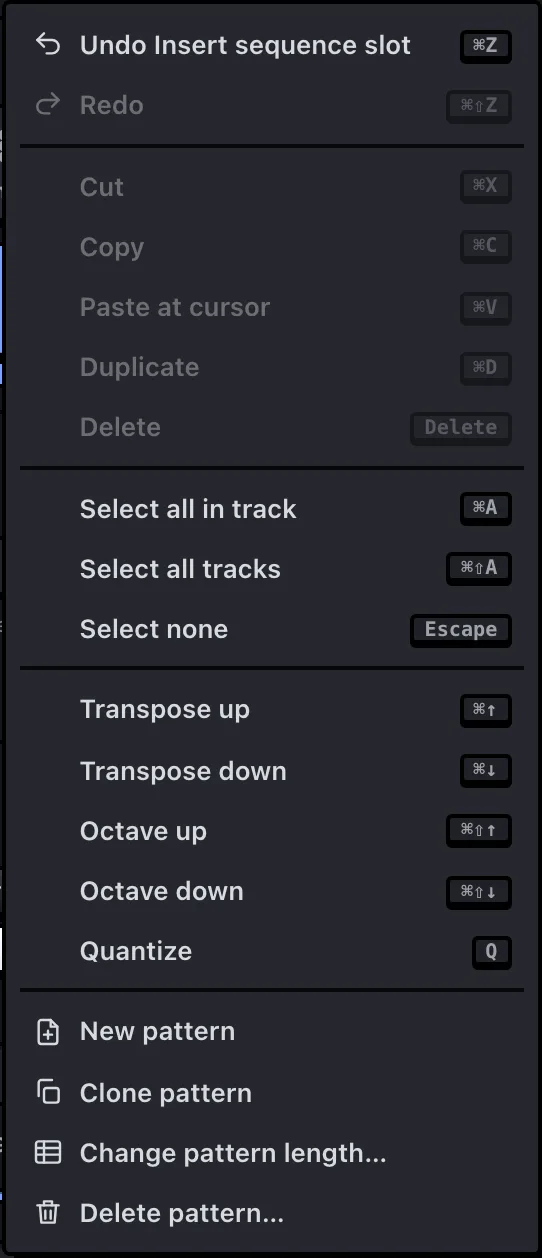
| Item | Shortcut |
|---|---|
| Undo / Redo | Ctrl/⌘ Z · Ctrl/⌘ Shift Z |
| Cut · Copy · Paste at cursor | Ctrl/⌘ X · C · V |
| Duplicate | Ctrl/⌘ D |
| Delete | Delete |
| Select all in track · all tracks | Ctrl/⌘ A · Ctrl/⌘ Shift A |
| Select none | Esc |
| Transpose up/down · octave | Ctrl/⌘ ↑/↓ · Ctrl/⌘ Shift ↑/↓ |
| Quantize | Q |
| New pattern · Clone pattern | — |
| Change pattern length… | — |
| Delete pattern… | — |
View
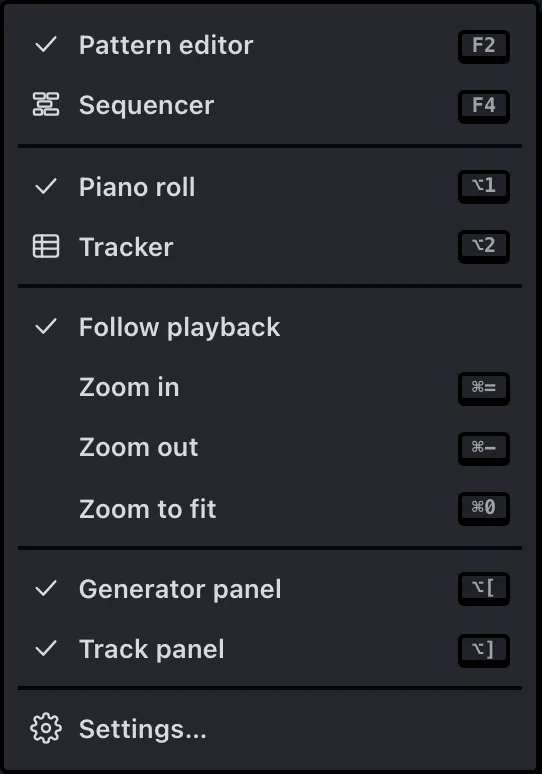
| Item | Shortcut |
|---|---|
| Pattern editor · Sequencer | F2 · F4 |
| Piano roll · Tracker | Alt 1 · Alt 2 |
| Follow playback | — |
| Zoom in · out · to fit | Ctrl/⌘ = · − · 0 |
| Generator panel · Track panel | Alt [ · Alt ] |
| Settings… | — |
Generate
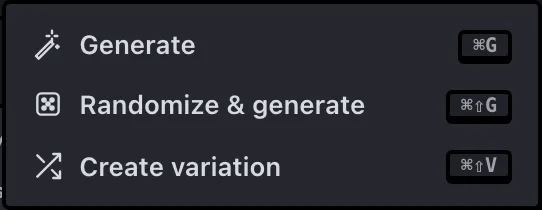
| Item | Shortcut |
|---|---|
| Generate | Ctrl/⌘ G |
| Randomize & generate | Ctrl/⌘ Shift G |
| Create variation | Ctrl/⌘ Shift V |
Help
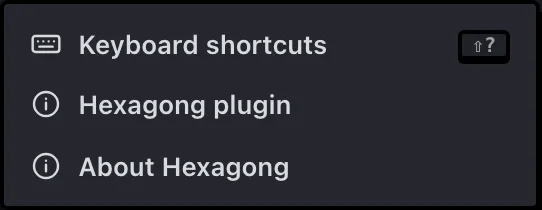
| Item | Shortcut |
|---|---|
| Keyboard shortcuts | Shift ? |
| About Hexagong | — |
Generator (left column)
Everything you need to shape what gets generated. A small padlock beside a control locks it: Randomize leaves locked values alone. Sections collapse with their headings.
Generate
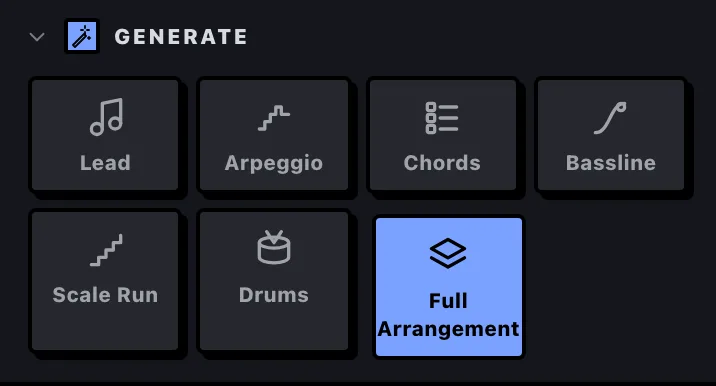
| Control | What it does |
|---|---|
| Lead | A melody with phrases, motifs, ornaments and cadences. |
| Arpeggio | Broken chords following the progression. |
| Chords | The chord progression with a genre comping rhythm and voice-leading. |
| Bassline | A bass part in the genre's style (walking, reese, acid, tumbao…). |
| Scale Run | Scale exercises: up, down, thirds, fourths, groups and more. |
| Drums | A drum pattern on channel 10, with the percussion engine applied. |
| Full Arrangement | Chords, bass, lead and drums at once. |
Style
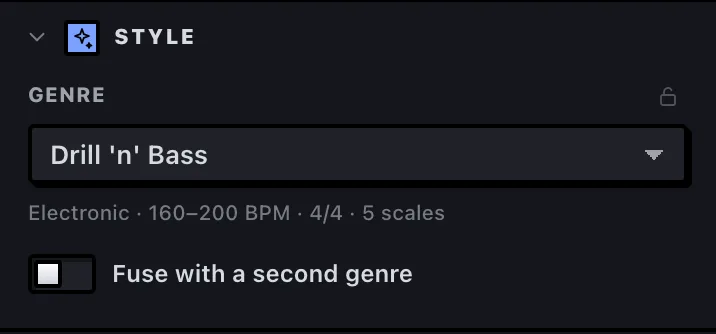
| Control | What it does |
|---|---|
| Genre | 104 genres in 8 groups. Choosing one loads its scales, tempo, meter, swing, feel and percussion defaults into every unlocked control. |
| Genre summary | Group, tempo range, meters and number of genre scales. |
| Fuse with a second genre | Turns on genre fusion. |
| Fuse with | The second genre. |
| Blend | How far the result leans toward the second genre (shown as A / B). |
| Scales · Rhythm · Harmony | Which aspects the second genre contributes. |
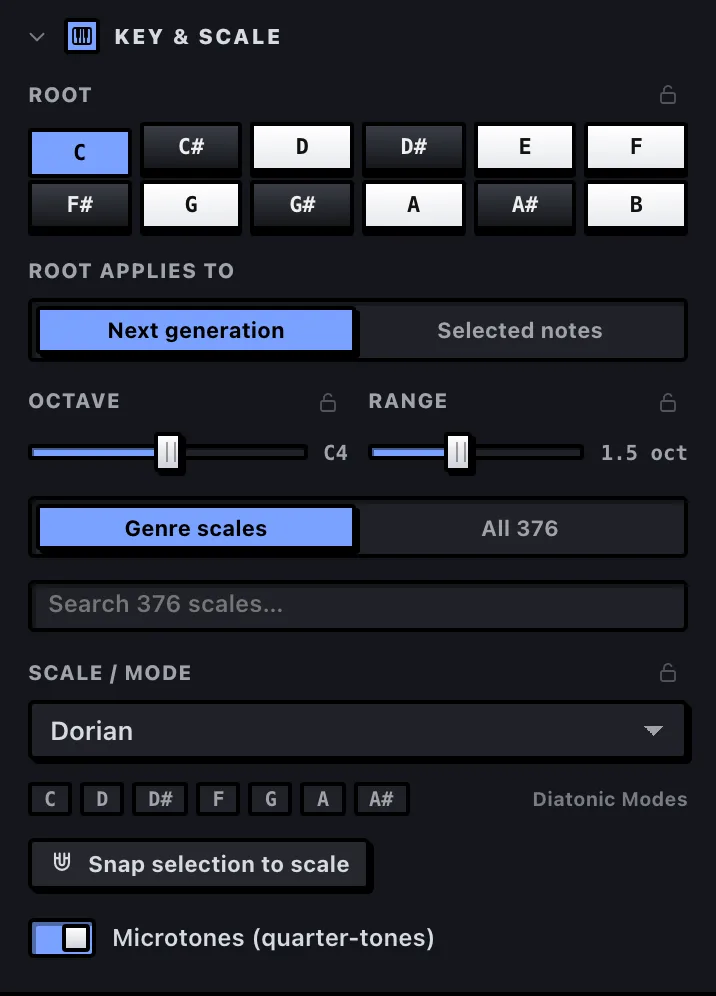
Key & scale
| Control | What it does |
|---|---|
| Root | The twelve root notes. With Root applies to → Selected notes, clicking a root transposes the selection (shortest way) instead. |
| Root applies to | Next generation or Selected notes. |
| Octave · Range | Starting octave and how many octaves the melody may span. |
| Genre scales · All 376 | Show the genre's own scales, or every scale grouped by family. |
| Search | Filter scales by name, family or alternative name; Enter picks the first match. |
| Scale / mode | The scale used for generation. |
| Scale notes | The notes of the chosen scale (quarter-tones shown with arrows and cents). |
| Snap selection to scale | Moves selected notes to the nearest scale notes. |
| Microtones (quarter-tones) | Play maqamat and other microtonal scales with real quarter-tones; off uses their 12-tone versions. |
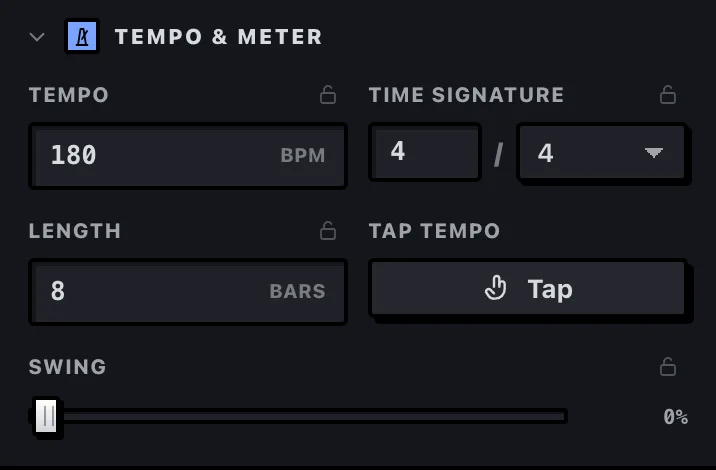
Tempo & meter
| Control | What it does |
|---|---|
| Tempo | BPM for the generated material (applied to the project). |
| Time signature | Beats per bar and beat unit; simple, compound and odd meters all work. |
| Length | Bars to generate; sets the pattern length (up to 512 lines). |
| Tap | Tap repeatedly to set the tempo. |
| Swing | Delays off-beats for a swung feel. |
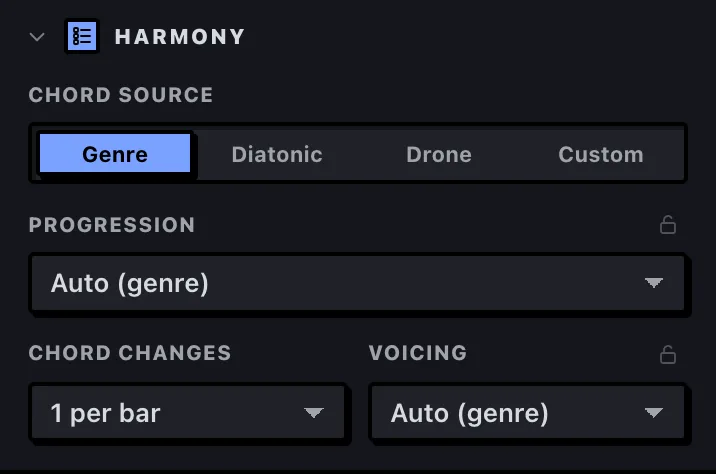
Harmony
| Control | What it does |
|---|---|
| Chord source | Genre progressions, Diatonic chords built from the scale, a Drone, or Custom Roman numerals. |
| Progression | Auto (random from the genre) or a specific genre progression. |
| Custom progression | Roman numerals such as ii7 V7 Imaj7 bVII9 (b/# prefixes, 7, maj7, m7, 9, ø, o7, sus4, add9, +…). |
| Chord changes | Two per bar, one per bar, or every two bars. |
| Voicing | Auto, triad, seventh, ninth, extended, power, shell, quartal or spread. |
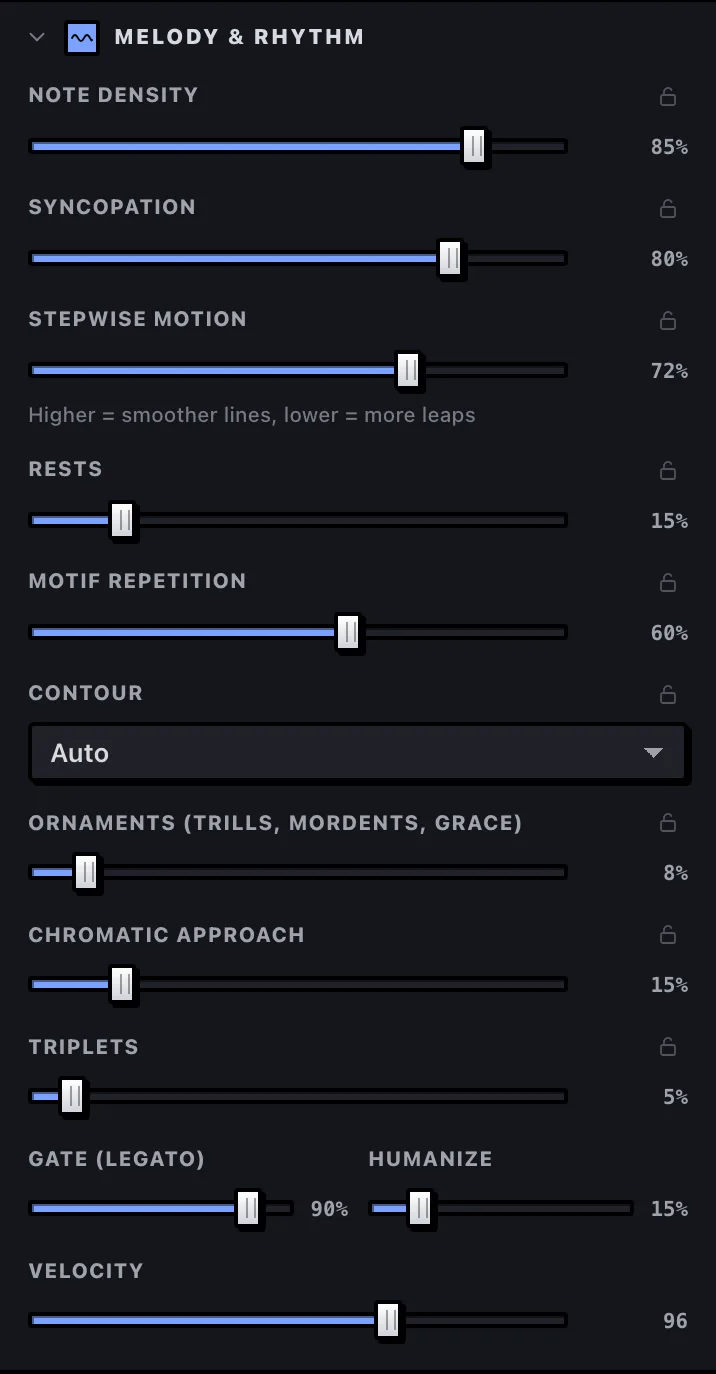
Melody & rhythm
| Control | What it does |
|---|---|
| Note density | How many notes per beat. |
| Syncopation | How often notes land off the beat. |
| Stepwise motion | Smooth lines (high) or leaps (low). |
| Rests | How often silence replaces a note. |
| Motif repetition | How closely repeated phrases restate the first one. |
| Contour | Overall shape: arch, wave, ascending, descending, valley, flat or random. |
| Ornaments | Trills, mordents, turns and grace notes. |
| Chromatic approach | Bebop-style approach notes and enclosures. |
| Triplets | Chance of triplet subdivisions. |
| Gate (legato) | Note length relative to its slot. |
| Humanize | Small velocity and laid-back timing variations. |
| Velocity | Base loudness. |
Pattern options
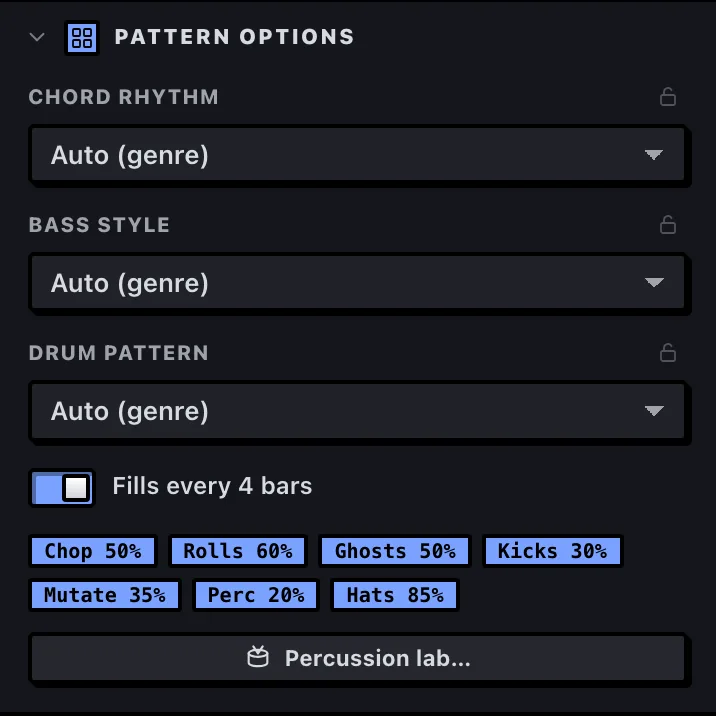
| Control | What it does |
|---|---|
| Arp pattern · Rate · Octaves | Up, down, up-down, converge, pinky, Alberti, kotekan, kora, chord…; note rate; octave spread. |
| Chord rhythm | 31 comping patterns (stabs, push, bossa, montuno, skank, rasgueado, tremolo…). |
| Bass style | 24 styles (walking, boogie, funk, reese, wobble, 808, acid, tumbao…). |
| Drum pattern | 70 patterns; choosing one loads its percussion defaults. |
| Fills every 4 bars | Tom and snare fills at phrase ends. |
| Percussion summary · Percussion lab… | Active percussion settings, and a shortcut to the Lab's Percussion tab. |
| Run pattern · Rate | For Scale Run. |
Experimental lab
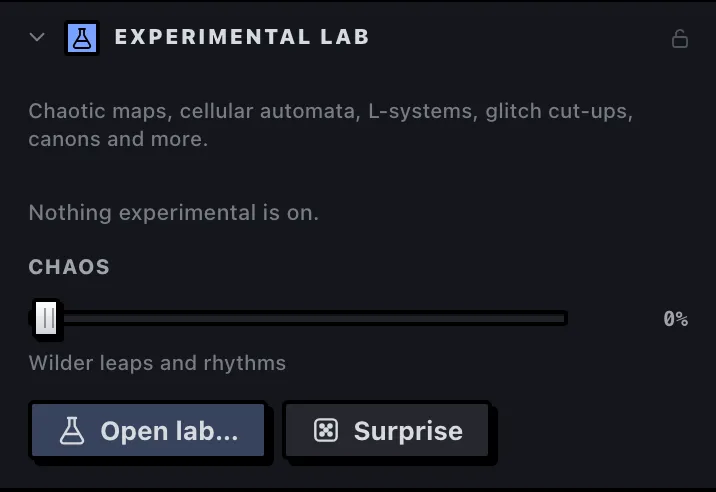
| Control | What it does |
|---|---|
| Summary | Chips listing the active Lab options. |
| Chaos | Wilder leaps, rhythms and octave jumps. |
| Open lab… | Opens the Lab. |
| Surprise | Randomizes the Lab options only. |
| Lock (heading) | Keeps all Lab options when randomizing. |
Seed & generating
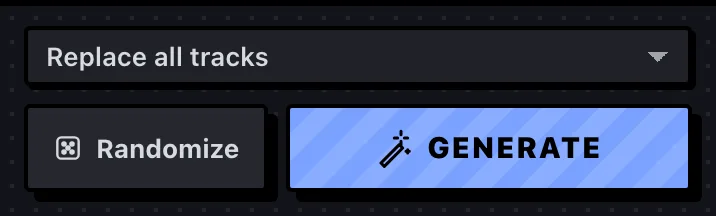
| Control | What it does |
|---|---|
| Random seed | Every result comes from this number; lock it to reproduce a result exactly. |
| Replace all tracks | Clears the current pattern and fills it with everything generated; the pattern takes the generated length. |
| Only replace active track | Puts one part (matching the active track) into the active track only, cut at the pattern end. |
| Insert into new pattern | Creates a new pattern after the current one in the song and fills it. |
| Randomize | Changes every unlocked parameter (Ctrl/⌘ Shift G also generates). |
| Generate | Generates with the current settings (Ctrl/⌘ G). |
The Lab
Open it from Experimental lab → Open lab… or Percussion lab…. Everything is stored with your generator settings. The footer has Reset, Surprise me (randomize the Lab), Generate (keeps the Lab open) and Done. Locks at the bottom keep the Lab or the percussion values when randomizing.
Rhythm
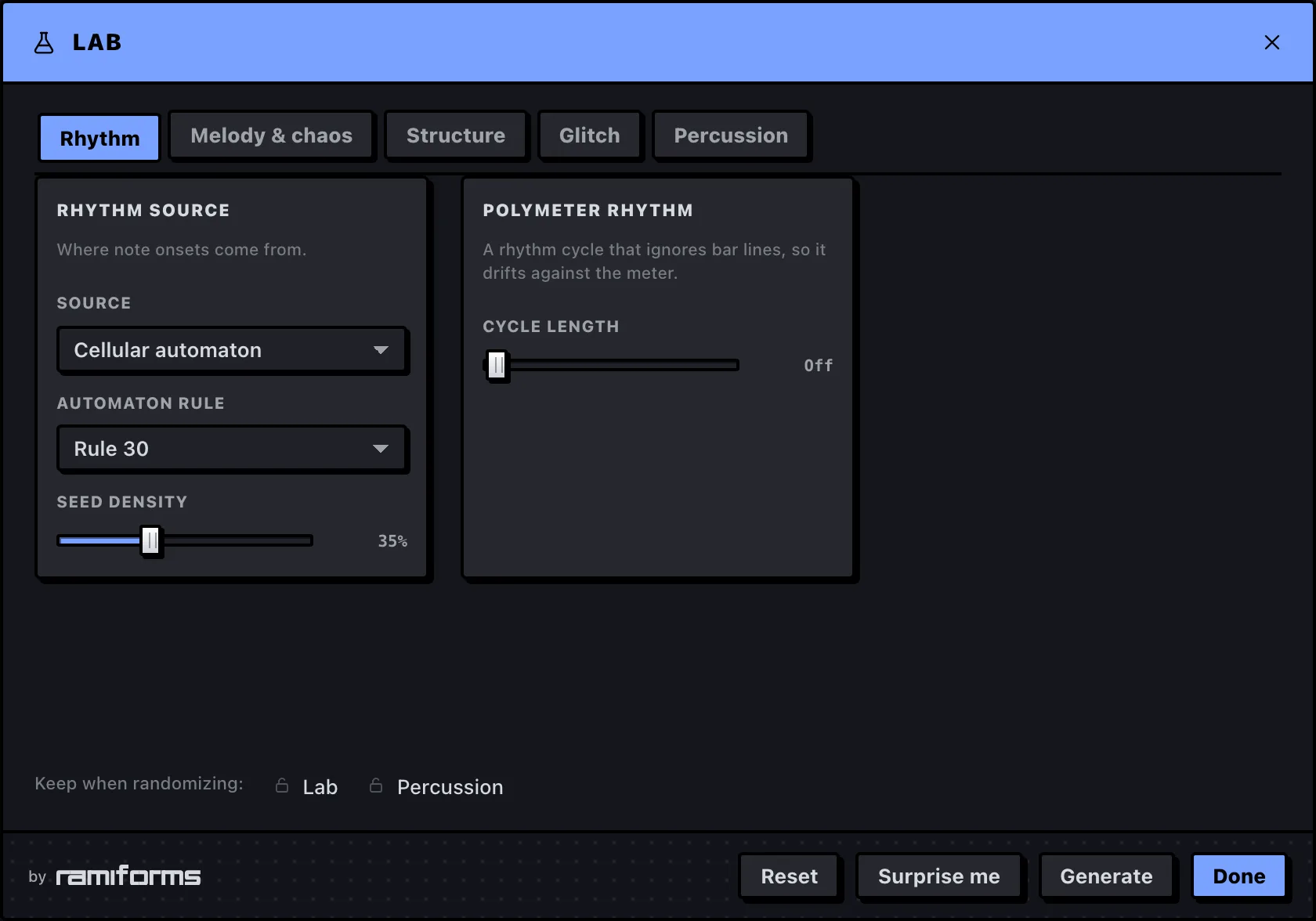
| Control | What it does |
|---|---|
| Source | Rhythm cells (default), Euclidean, Cellular automaton, Thue–Morse, Logistic map gates or Fibonacci word. |
| Pulses · Steps · Rotation · Mutate per bar | Euclidean settings. |
| Automaton rule · Seed density | Rule 30, 45, 54, 60, 90, 105, 110, 126, 150 or 184, and how many cells start alive. |
| Polymeter rhythm | A cycle of N sixteenths that ignores bar lines. |
Melody & chaos
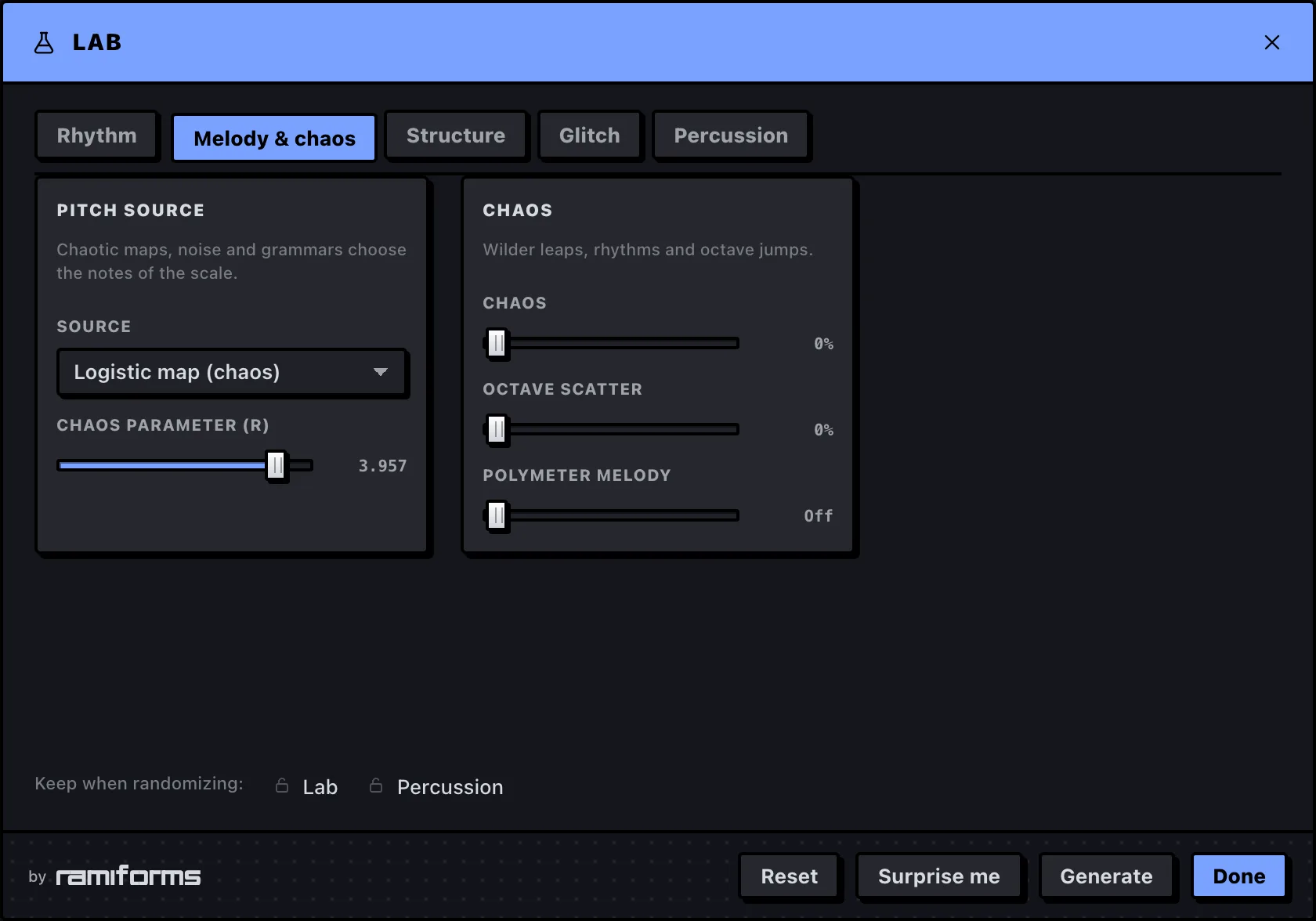
| Control | What it does |
|---|---|
| Source | Melodic walk (default), logistic map, Hénon attractor, 1/f pink noise, Brownian drift, simplex noise, L-system, twelve-tone row, harmonic series or Fibonacci. |
| Chaos parameter (r) | For the logistic map (3.570–4.000). |
| Noise speed · L-system | For simplex noise and the L-system source. |
| Chaos · Octave scatter · Polymeter melody | Extra wildness, random octave jumps and a short repeating pitch cycle. |
Structure
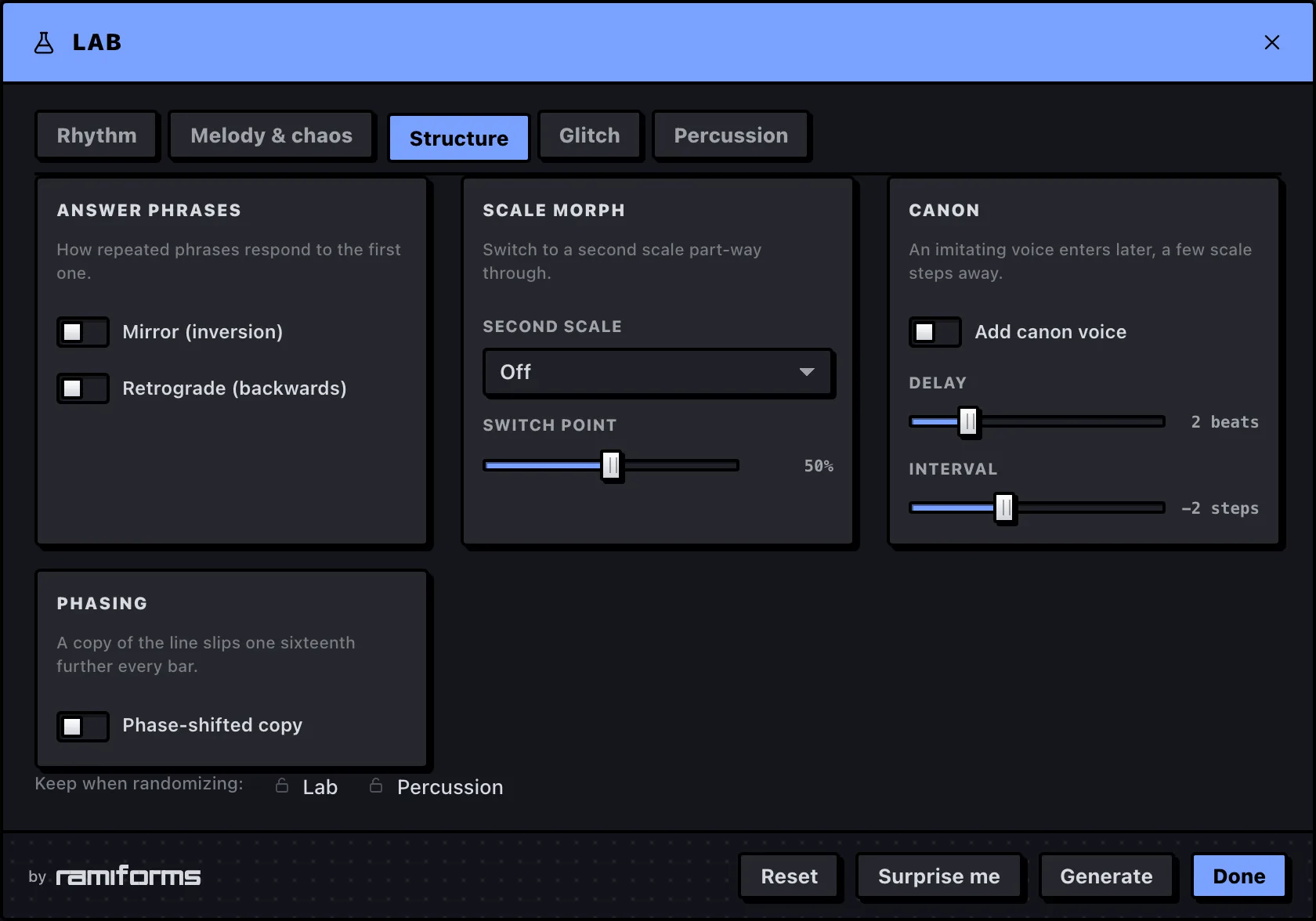
| Control | What it does |
|---|---|
| Mirror · Retrograde | Answer phrases are inverted or played backwards. |
| Second scale · Switch point | Scale morph part-way through. |
| Canon · Delay · Interval | An imitating voice, delayed by beats and offset by scale steps. |
| Phasing | A copy that slips a sixteenth further each bar. |
Glitch
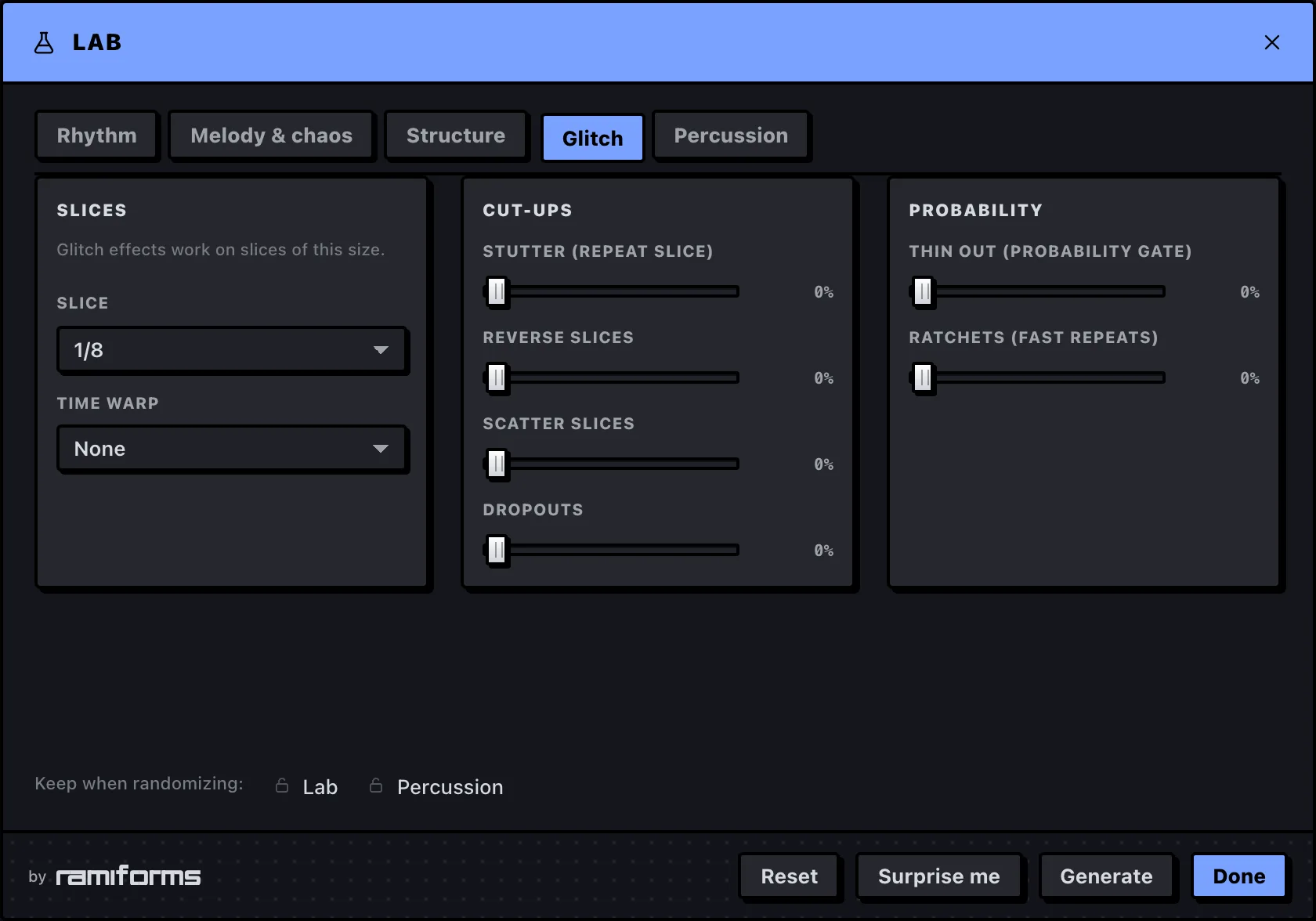
| Control | What it does |
|---|---|
| Slice · Time warp | Slice size (1/32–1/4) and accelerate, decelerate, wave or drunk timing. |
| Stutter · Reverse · Scatter · Dropouts | Repeat, reverse, borrow or silence slices. |
| Thin out · Ratchets | Probability gate and fast repeats. |
Percussion
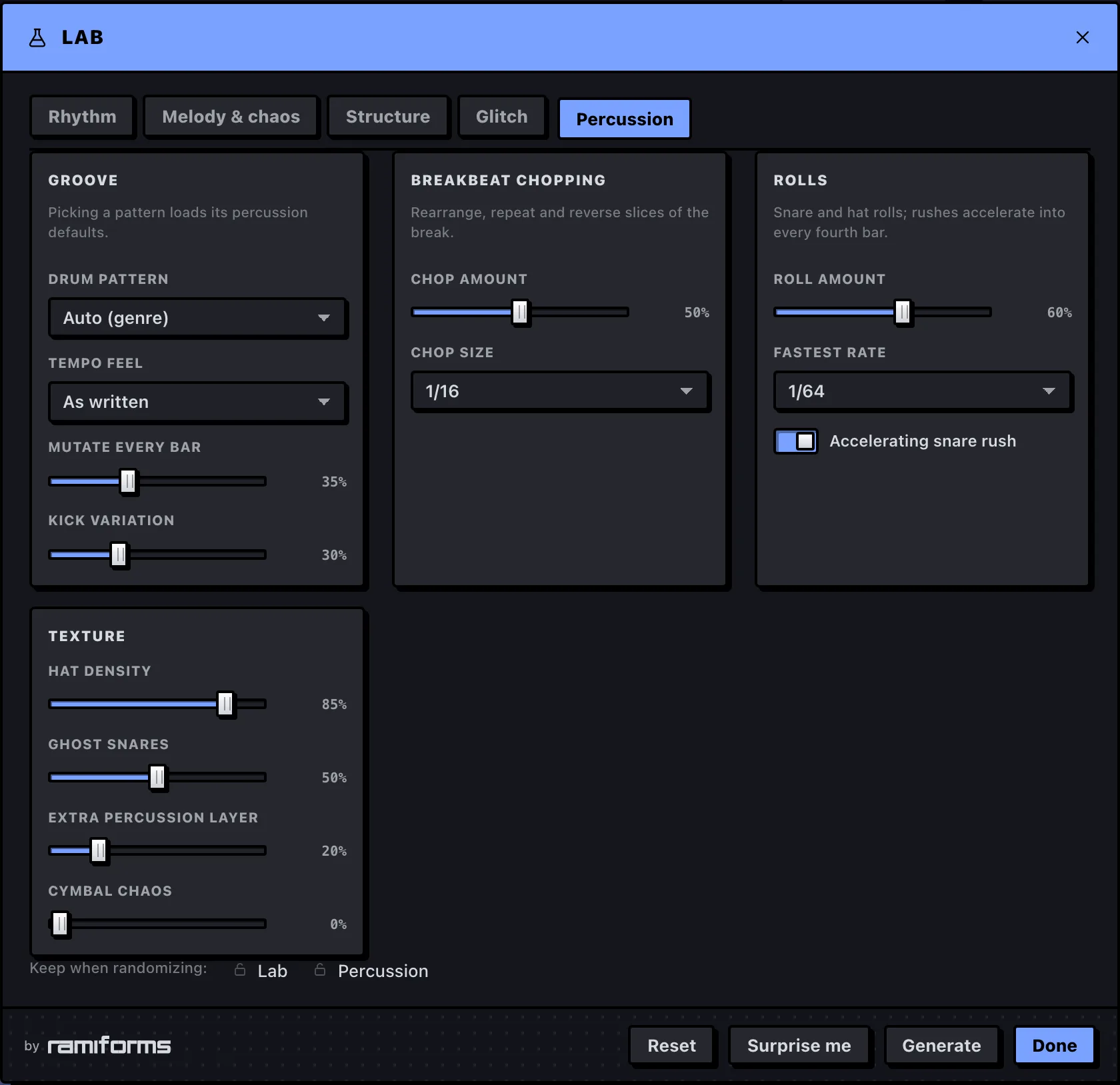
| Control | What it does |
|---|---|
| Drum pattern · Tempo feel | Pattern (loads defaults) and as written, half-time, double-time or switch every two bars. |
| Mutate every bar · Kick variation | Bar-to-bar drift and extra or displaced kicks. |
| Chop amount · Chop size | Break re-sequencing and its slice size. |
| Roll amount · Fastest rate · Snare rush | Rolls at 1/32 to 1/64T and accelerating rushes into every fourth bar. |
| Hat density · Ghost snares · Percussion layer · Cymbal chaos | Texture controls. |
Pattern editor
The middle column edits one pattern at a time. Choose the piano roll or the tracker in Settings → Editor (or with Alt 1 / Alt 2).
Toolbar


| Control | What it does |
|---|---|
| Pattern editor · Sequencer | Switch the middle column between editing a pattern and arranging the song (F2 / F4). |
| Select · Draw · Erase | Piano roll tools (V, D, E). |
| Snap | Grid for drawing and moving notes (off, 1 bar … 1/32, triplets). |
| Note octave | Octave used for tracker keyboard entry (Numpad / and *). |
| AUTO OFF | On: each typed note closes after one beat. Off: notes ring until the next note in their column. |
| Pattern | Every pattern in the order created; pick one to edit it. |
| + | Creates a new pattern after the current slot and opens it. |
| LPB | Lines per beat; patterns keep their duration when you change it. |
| Lines / Bars | Pattern length (8–512 lines). Settings → Editor chooses lines or bars. |
| Follow playback | Keeps the playhead in view and follows the song from pattern to pattern. |
| Ghost notes · Scale rows · Zoom | Piano roll display options (hidden on narrow screens; also in Settings). |
Piano roll
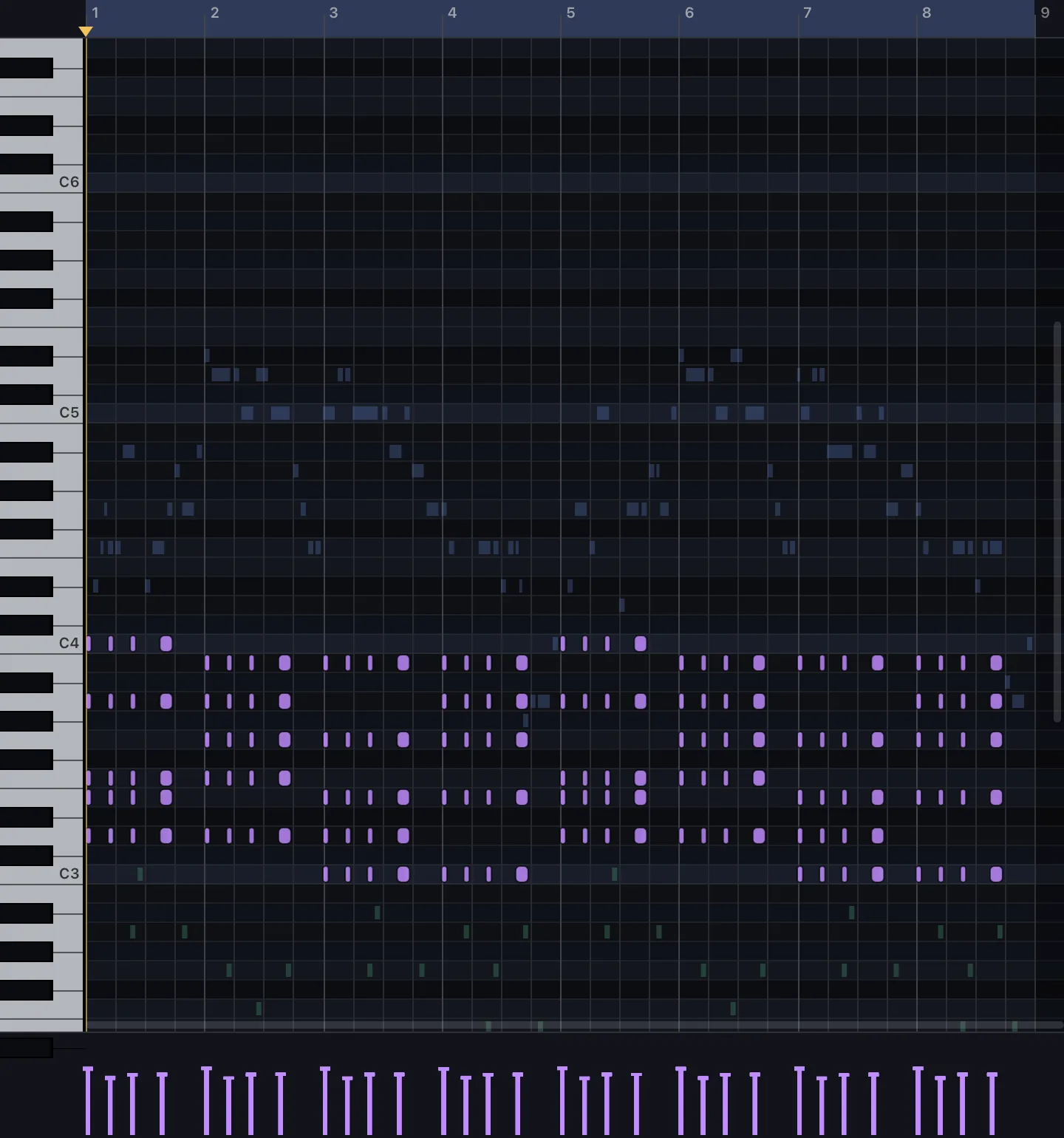
| Control | What it does |
|---|---|
| Double-click | Add a note (select tool) or delete the note under the pointer. |
| Drag a note | Move it (snapped); Shift moves freely; Alt drags a copy. |
| Drag a note's right edge | Resize. |
| Drag on empty space | Rubber-band selection (Shift adds). |
| Right-click a note | Delete it. Right-click the ruler for the pattern menu. |
| Keyboard (left) | Click keys to audition notes. |
| Ruler | Click to place the cursor; Shift-drag to set a loop range. |
| Velocity lane | Drag to set velocities (selected notes first). |
| Wheel | Scroll; Ctrl/⌘+wheel zooms time, Alt+wheel zooms pitch. |
| Arrow keys | Move the selection by semitone/grid; Shift moves by octave. |
Tracker
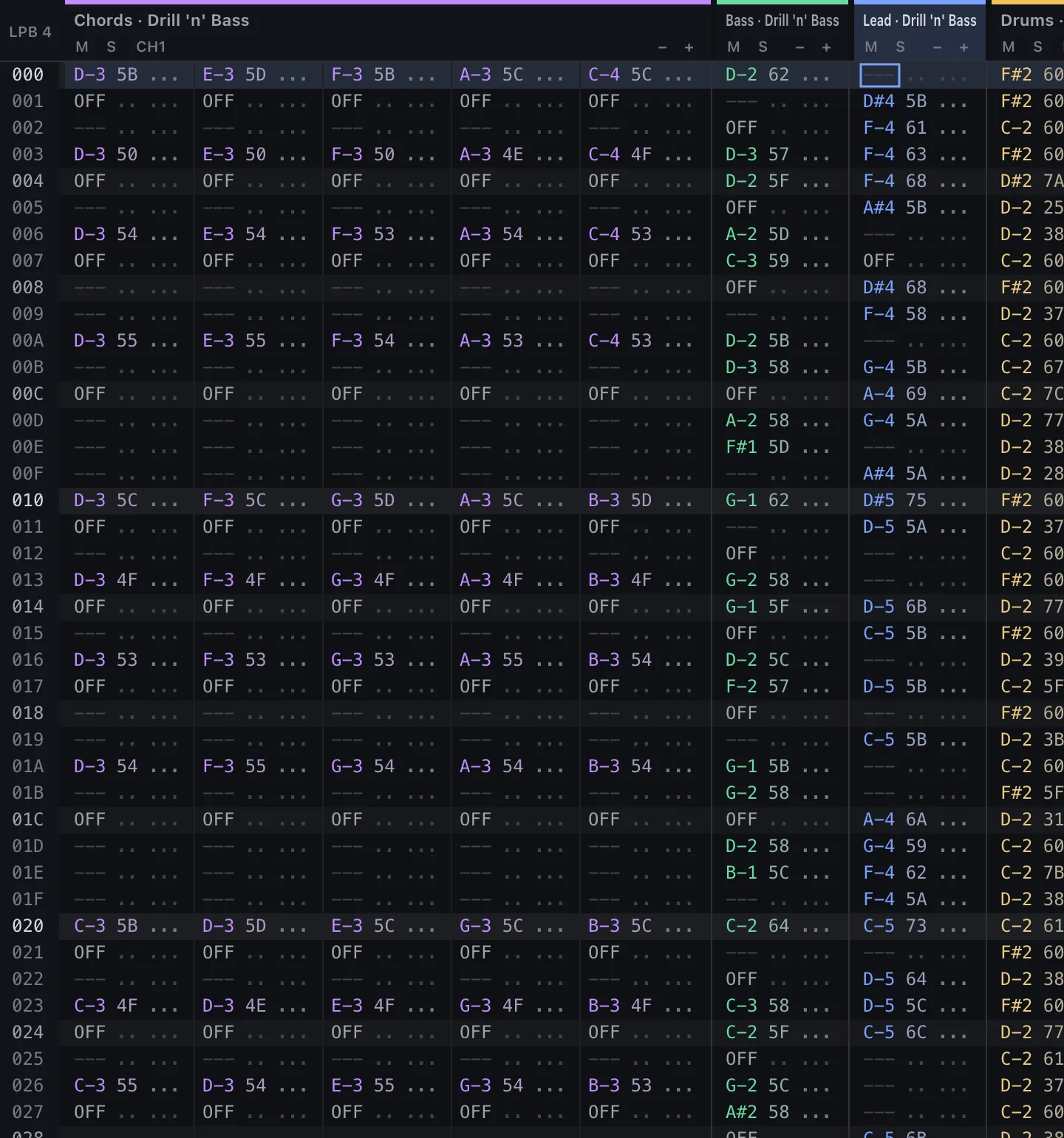
| Control | What it does |
|---|---|
| Z S X D C V G B H N J M | Enter notes in the lower octave (piano layout on the keyboard). |
| Q 2 W 3 E R 5 T 6 Y 7 U I 9 O 0 P | Enter notes in the upper octaves. |
| A | Note-off: ends the note sounding in this column. |
| 0–9, A–F | In the volume or delay field: type hex digits. |
| Arrows · Page Up/Down · Home · End | Move the cursor (it stops at the pattern's last line). |
| Tab / Shift Tab | Next / previous note column, continuing into neighbouring tracks. |
| Shift+arrows · drag | Block selection. |
| Delete · Backspace | Clear the cell (Backspace also moves up). |
| Insert · Ctrl/⌘ Backspace | Insert or delete a row in the track. |
| Track header: M · S · − · + | Mute, solo, and remove or add note columns. |
| Drag a track's name | Move the track left or right (the view scrolls faster the longer you hold at an edge). |
| Double-click a track name | Rename the track. |
Right-click menu
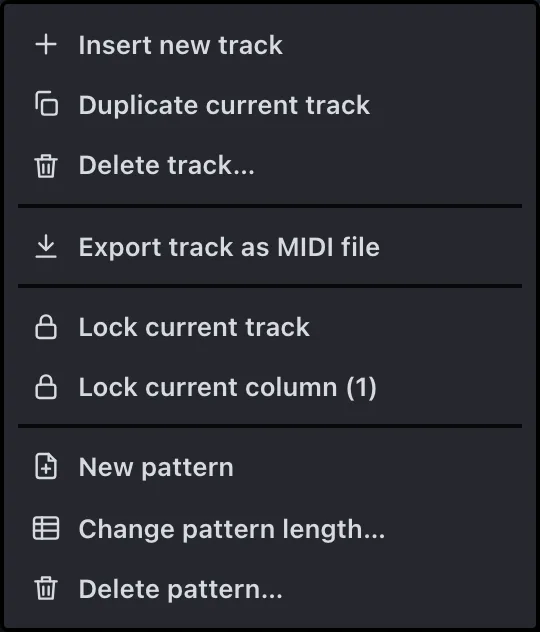
| Control | What it does |
|---|---|
| Insert new track | Adds an instrument track next to the current one. |
| Duplicate current track | Copies the track (all patterns) to the right, named “…-copy”. |
| Delete track… | Asks “Are you sure you want to delete this track?” first. |
| Lock current track | Generate never overwrites it (a padlock appears). |
| Lock current column | Generate keeps the notes in this note column. |
| New pattern | Creates and opens a new pattern. |
| Change pattern length… | Opens the length dialog (8–512 lines). |
| Delete pattern… | Deletes the current pattern after a confirmation and removes it from the sequencer. |
Pattern dialogs
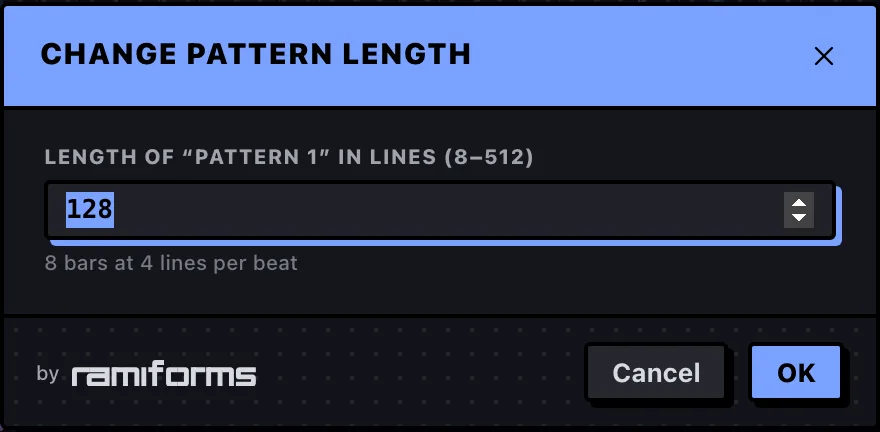
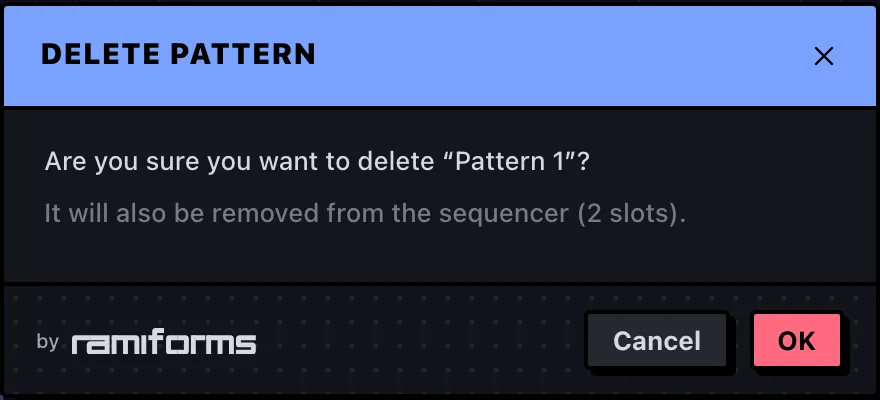
Deleting a pattern also removes every sequencer slot that plays it. Deleting the only pattern leaves an empty one in its place. Undo restores it.
Sequencer
Press F4 or the sequencer button to arrange patterns into a song. Rows are slots (row height reflects pattern length); columns are tracks; each cell previews that track's notes.
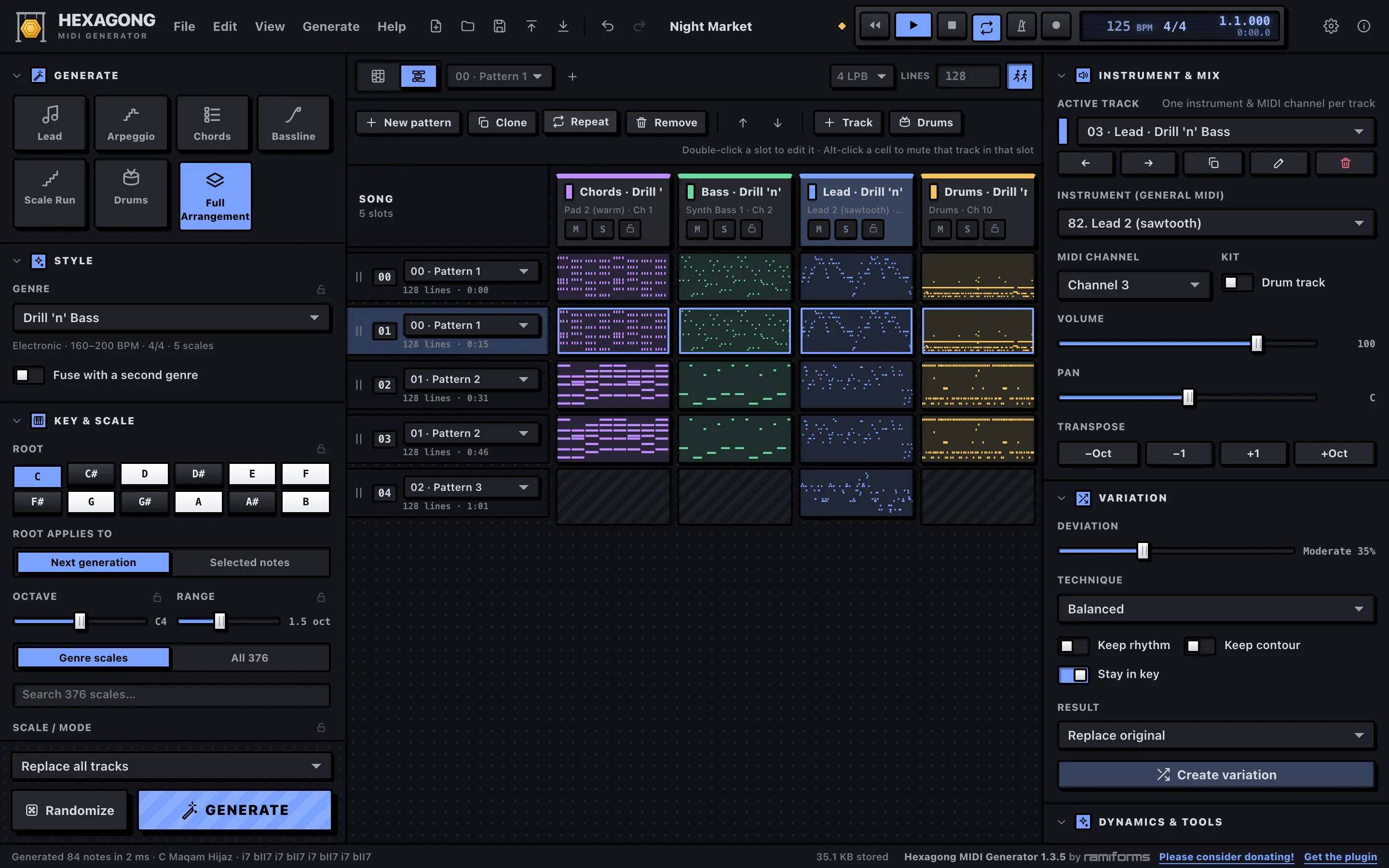

| Control | What it does |
|---|---|
| New pattern | An empty pattern after the selected slot. |
| Clone | A copy of the selected pattern after it. |
| Repeat | Plays the selected pattern again in the next slot. |
| Remove | Removes the selected slot from the song (Delete). |
| ↑ · ↓ | Move the selected slot (Alt ↑/↓); or drag a slot by its grip. |
| Track · Drums | Add an instrument track or a drum track (channel 10). |
| Slot pattern menu | Change which pattern a slot plays. |
| Click · double-click | Select a slot or cell · open it in the pattern editor (Enter). |
| Alt-click a cell | Mute that track in that slot only (hatched red). |
| Right-click | Track menu on cells and headers; pattern menu on slots. |
Track headers
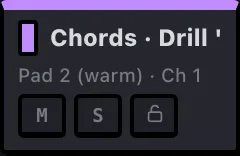
| Control | What it does |
|---|---|
| Colour swatch | Click to change the track colour. |
| Name | Double-click to rename; drag the header sideways to reorder. |
| M · S · padlock | Mute, solo and lock the track. |
Track & sound (right column)
Instrument & mix
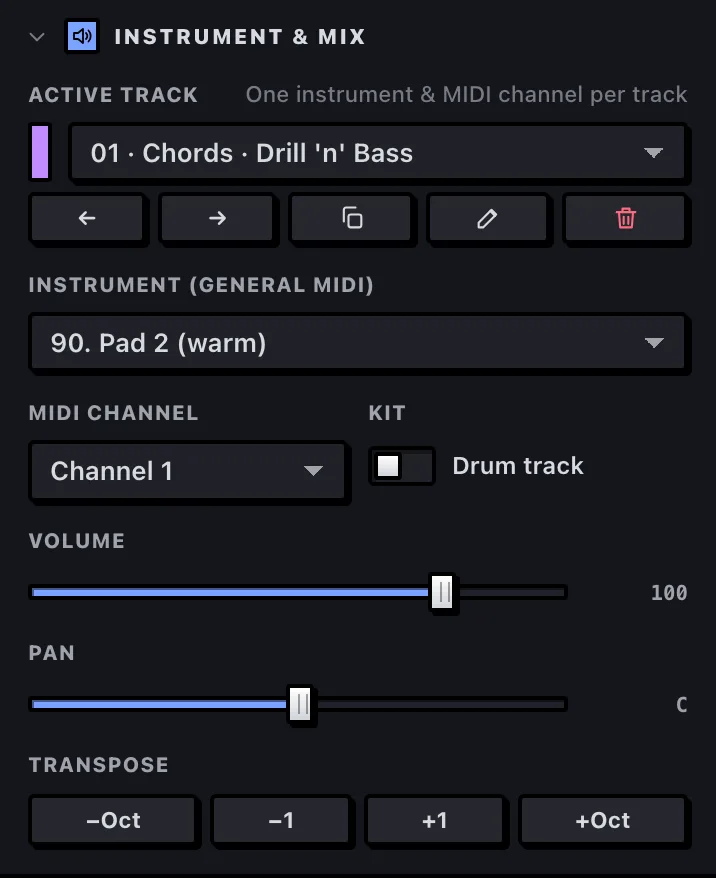
| Control | What it does |
|---|---|
| Active track | The track being edited, with buttons to move it left/right, duplicate, rename and delete it. |
| Instrument (General MIDI) | 128 instruments in 16 families. |
| MIDI channel · Drum track | Channel 1–16; drum tracks use channel 10. |
| Volume · Pan | Track mix (also sent to MIDI files and outputs). |
| Transpose | −Oct, −1, +1, +Oct (selection or whole track). |
Variation
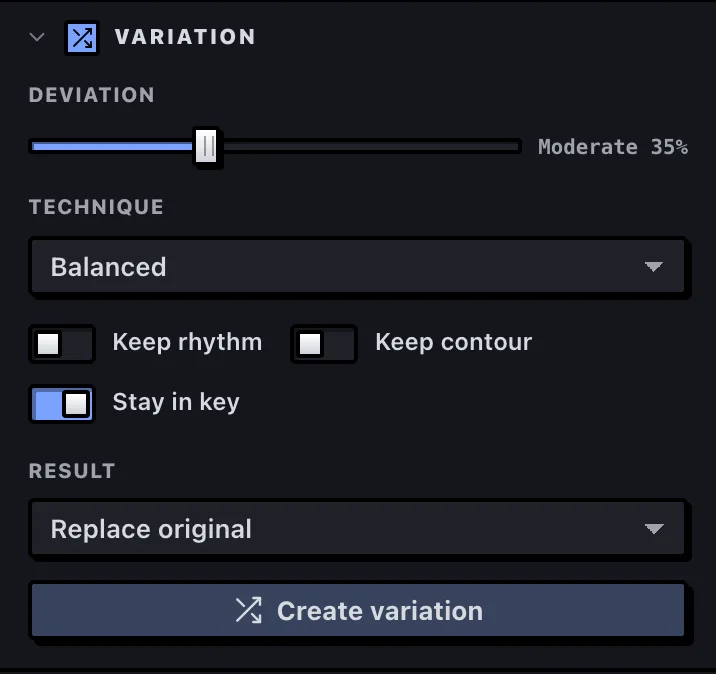
| Control | What it does |
|---|---|
| Deviation | Subtle to wild. |
| Technique | Balanced, melodic, rhythmic, ornamental or develop. |
| Keep rhythm · Keep contour · Stay in key | What the variation must preserve. |
| Result | Replace the original, a new track, or a new pattern (a copy of the current one). |
| Create variation | Works on the selection or the whole active track (Ctrl/⌘ Shift V). |
Dynamics & tools
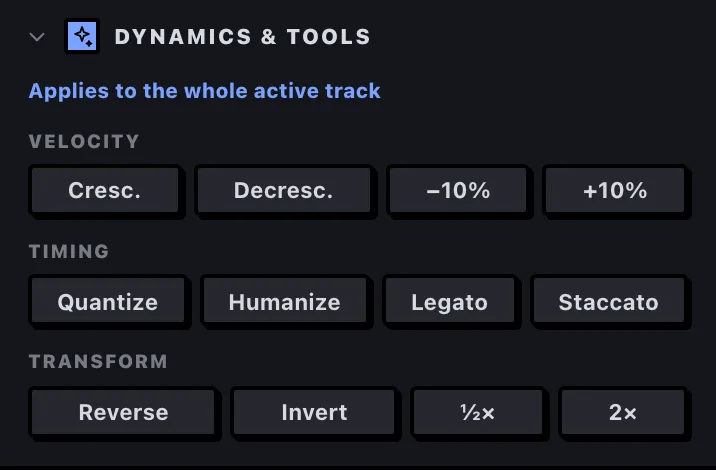
| Control | What it does |
|---|---|
| Cresc. · Decresc. · −10% · +10% | Velocity ramps and scaling. |
| Quantize · Humanize · Legato · Staccato | Timing tools. |
| Reverse · Invert · ½× · 2× | Transform tools. |
Tools act on the selected notes, or on the whole active track when nothing is selected.
Sound output
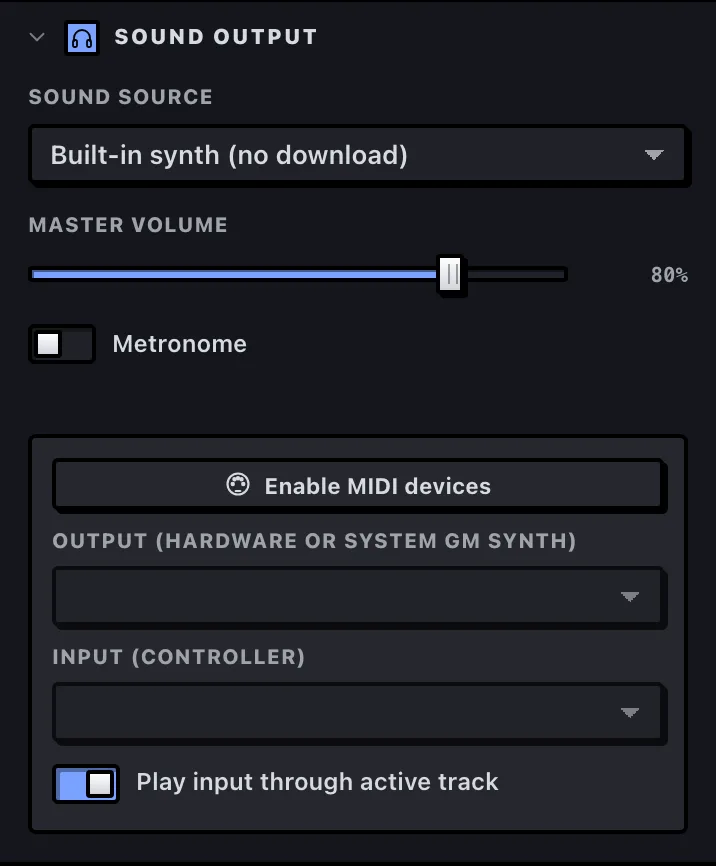
| Control | What it does |
|---|---|
| Sound source | Sampled General MIDI instruments, the built-in synth (no download), or MIDI output. |
| Sample bank | FluidR3 GM or Musyng Kite. |
| Master volume · Metronome | Overall level and beat clicks. |
| Enable MIDI devices | Asks the browser for MIDI access. |
| Output | Hardware or the operating system's GM synth (detected automatically when present). |
| Input · Play input through | A controller to play and step-record with, heard through the active track. |
Project info
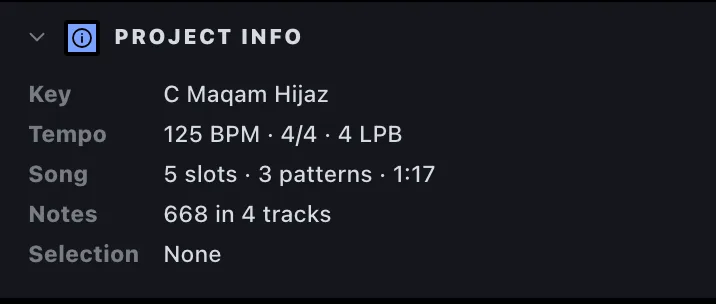
Key, tempo and LPB, song length (slots, patterns and duration), note count and the selection with its detected chord.
Playback & the song
Loop on repeats the current pattern — or a range you Shift-drag in the piano-roll ruler. Loop off plays the song from the selected sequencer slot to the end; with Follow playback on, the editor moves from pattern to pattern with it. Changing tempo or time signature while playing takes effect immediately.
Projects, import & export
| Control | What it does |
|---|---|
| Save · Save as | Saves to the projects list in this browser; Save as continues in a copy with a new name. |
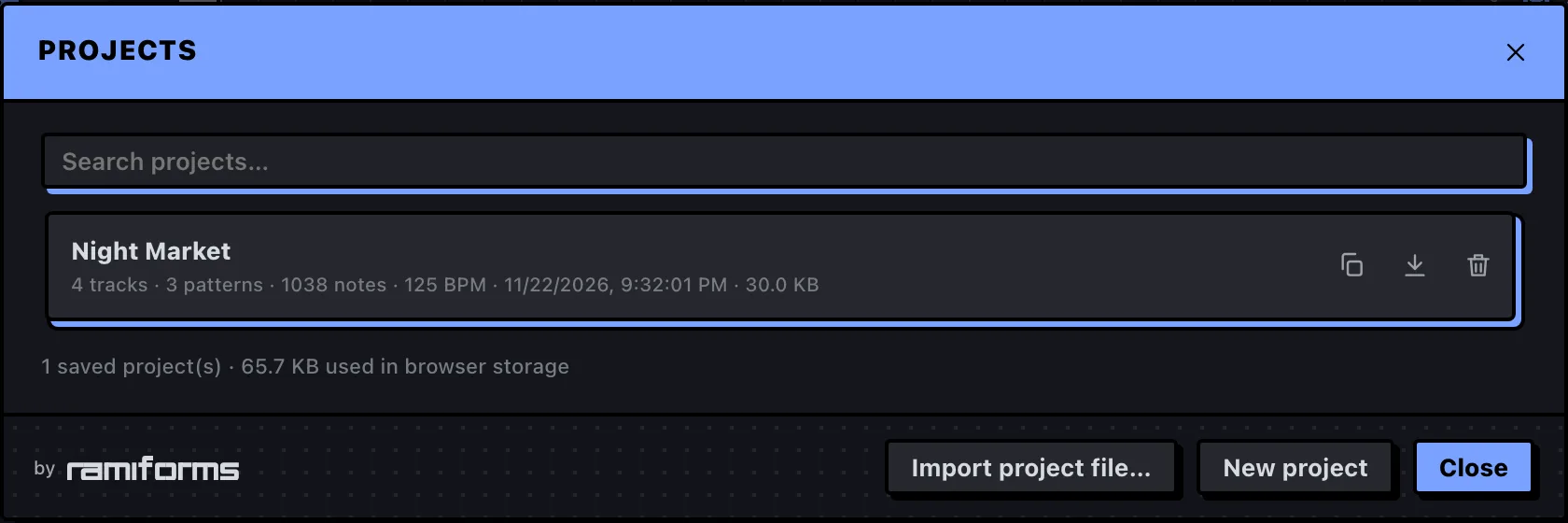
| Projects dialog | Search, open, duplicate, export as MIDI and delete saved projects; import a project file or start a new project. |
| New project | If there are unsaved changes, you are asked to Save, Don't save or Cancel. |
| Export project as one MIDI file | The whole song. Every MIDI export saves the project first, so the file matches the editor; a project never saved is saved under its current name. |
| Export each track as MIDI (ZIP) | One file per track. |
| Export active track as MIDI | One track across the whole song; also on each track’s right-click menu. |
| Export selected notes as MIDI | Only the selection, moved to the start. |
| Project file (.json) | Export or open a complete project. |
| Back up · Restore | Every project and setting in one file. |
Importing MIDI
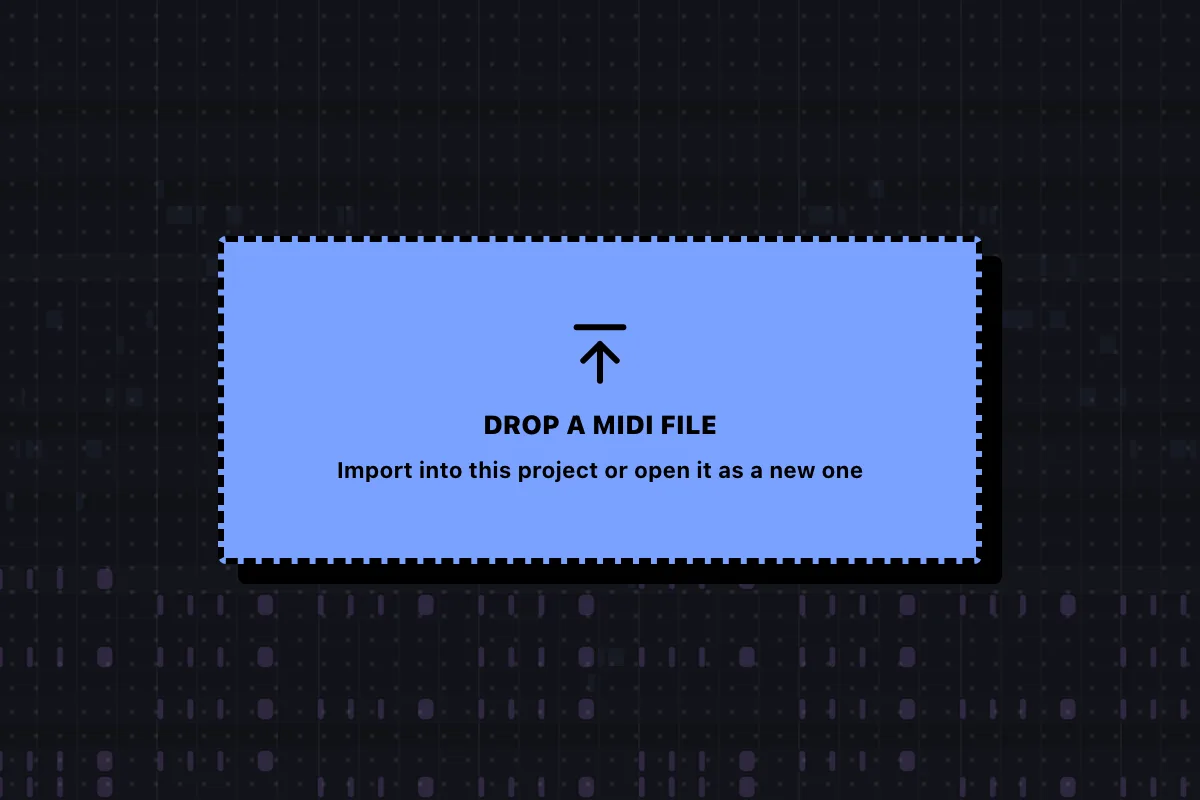
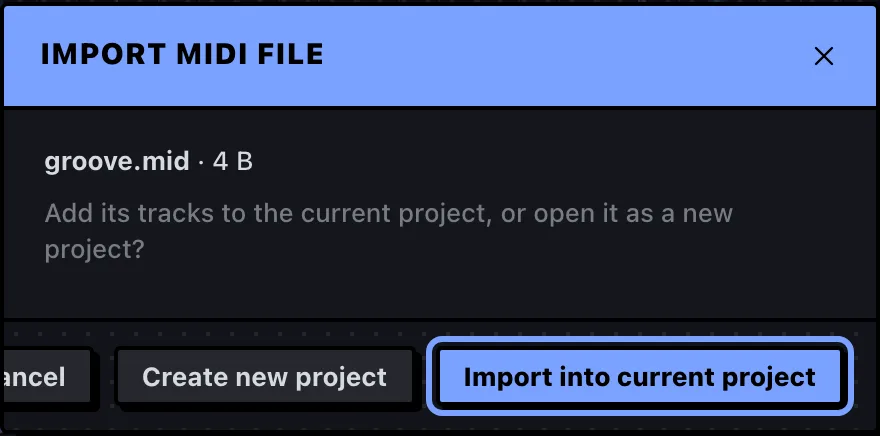
Drop a .mid file anywhere in the window (or use File → Import MIDI file…). Choose Import into current project to add its tracks, or Create new project — you'll be offered to save unsaved changes first. Long files are split into patterns.
Settings
Appearance
| Control | What it does |
|---|---|
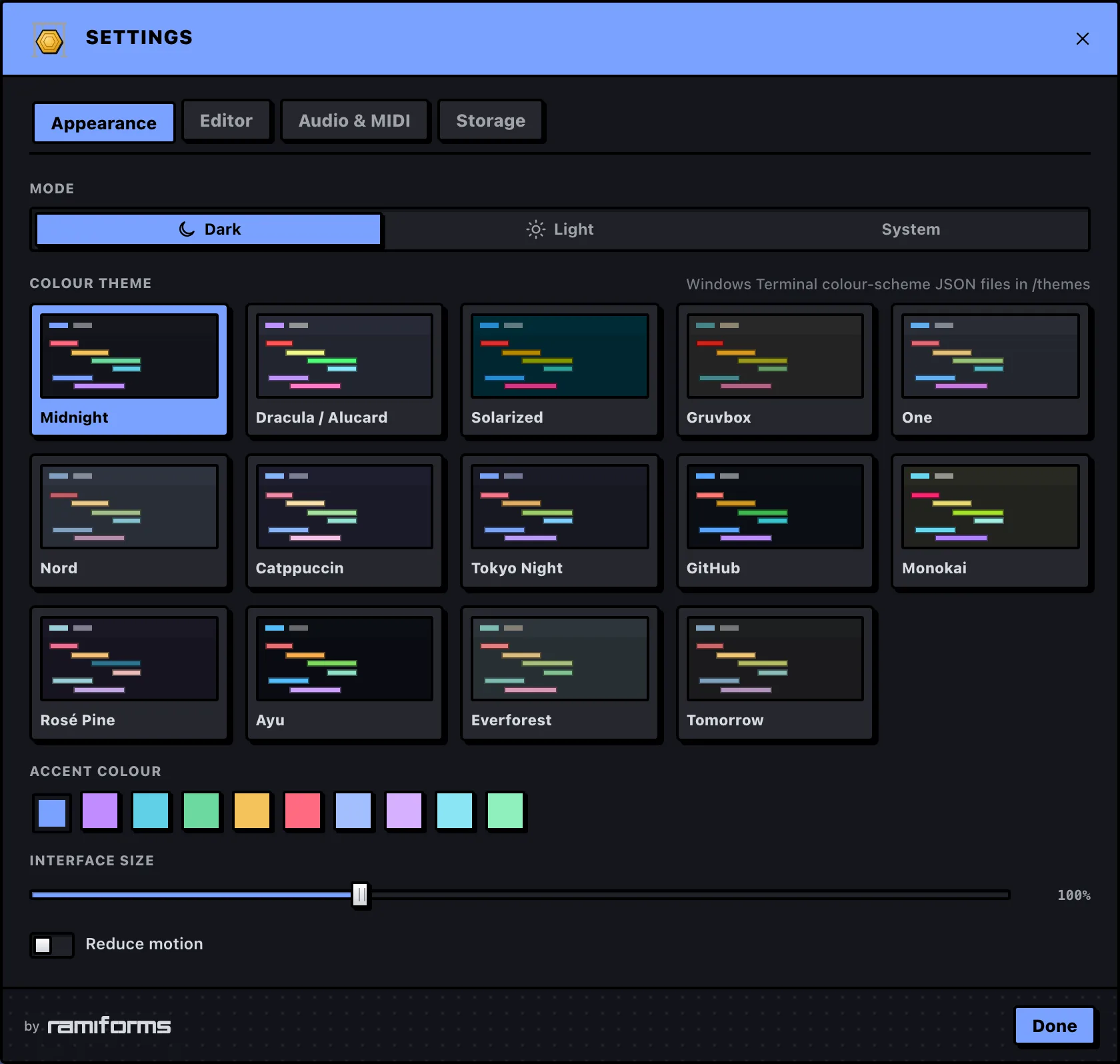
| Mode | Dark (default), Light or System. |
| Colour theme | 14 families (Windows Terminal colour-scheme files). |
| Accent colour | 10 accents taken from the theme. |
| Interface size · Reduce motion | UI scale and animation preference. |
Editor
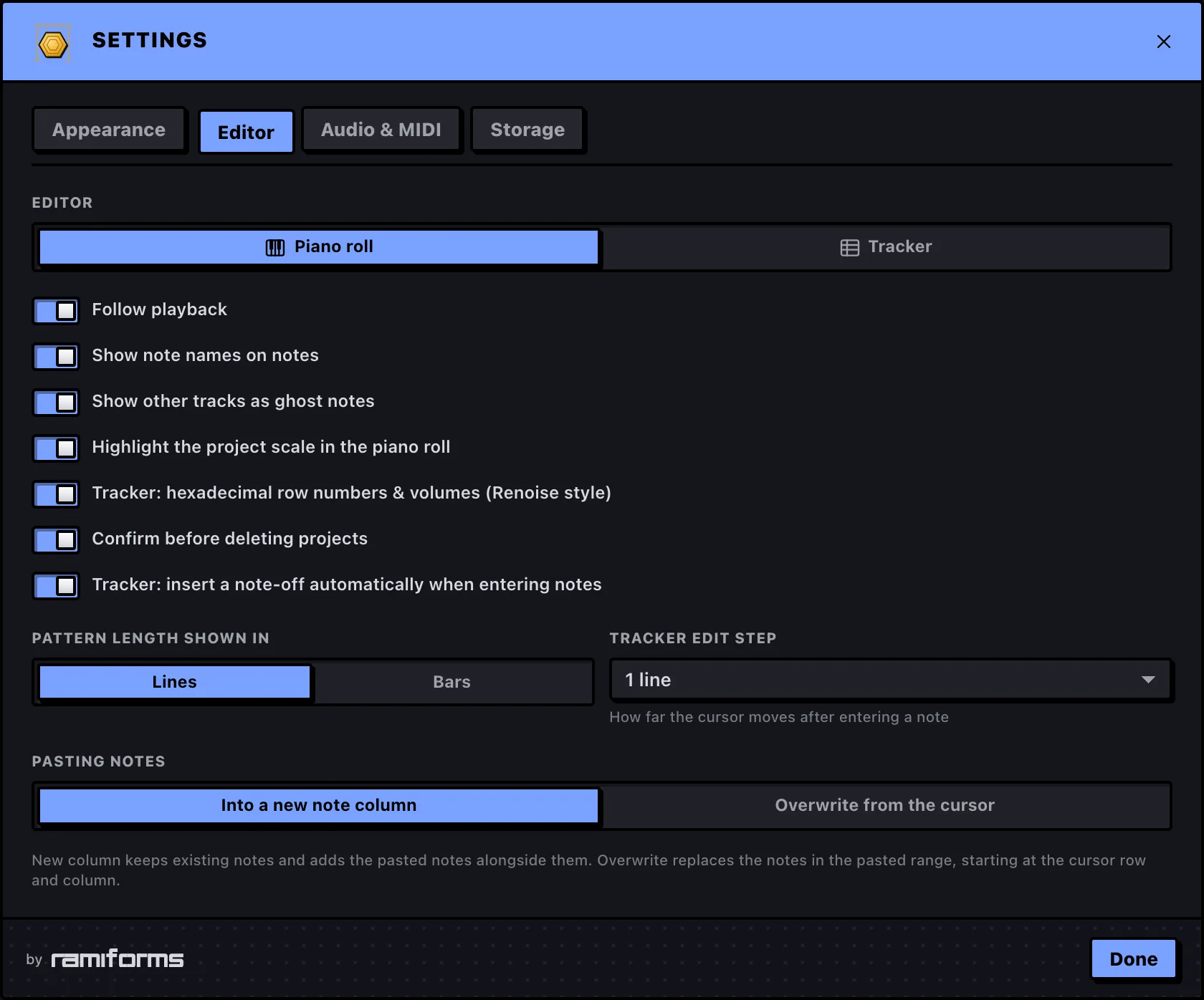
| Control | What it does |
|---|---|
| Editor | Piano roll or tracker. |
| Display toggles | Follow playback, note names, ghost notes, scale highlighting, hexadecimal tracker numbers, confirm project deletion, automatic note-off. |
| Pattern length shown in | Lines (default) or bars. |
| Tracker edit step | How far the cursor moves after entering a note. |
| Pasting notes | Into a new note column (default) or overwrite from the cursor. |
Audio & MIDI
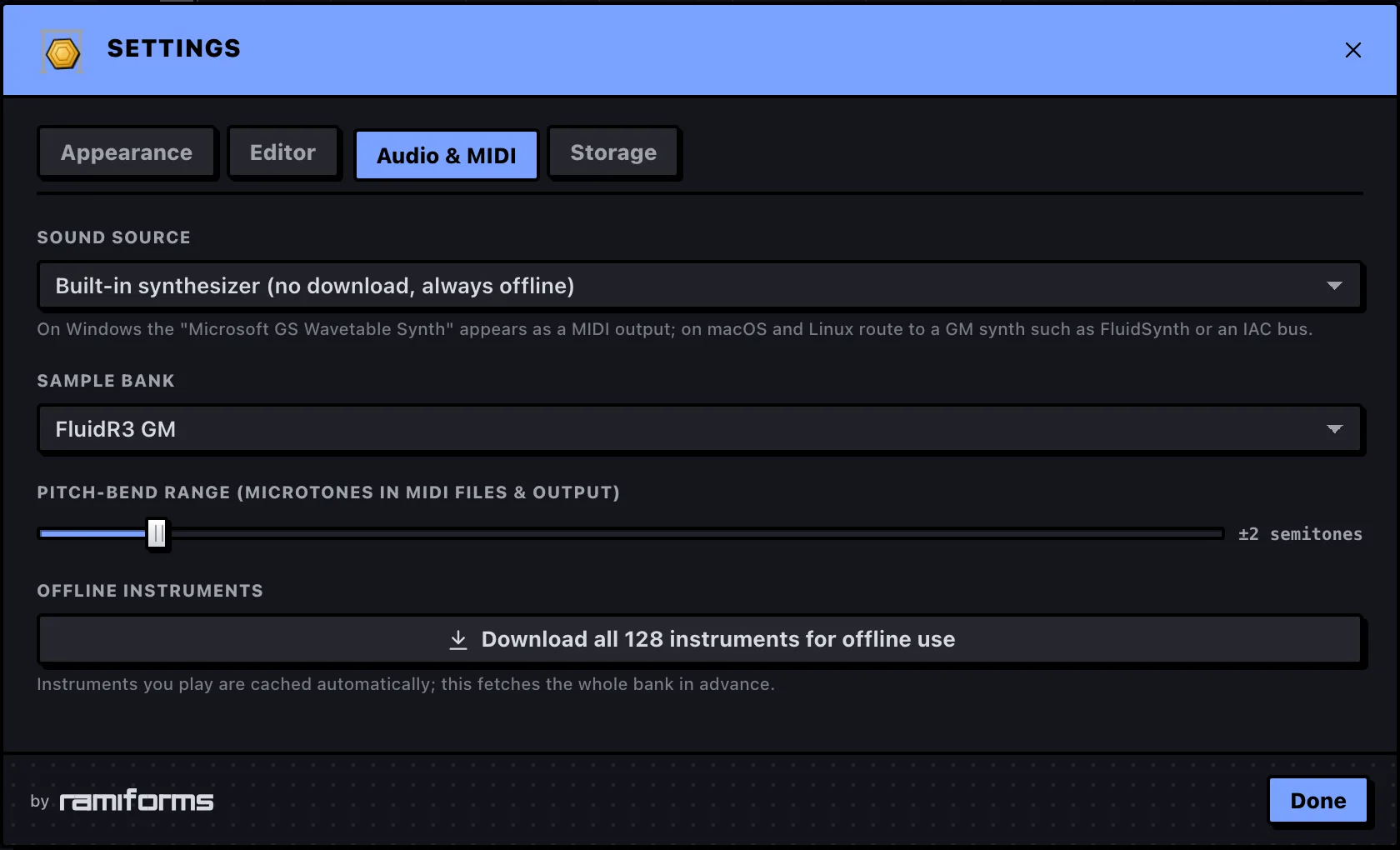
| Control | What it does |
|---|---|
| Sound source · Sample bank | As in the Sound output panel. |
| Pitch-bend range | Used for microtones in MIDI files and output. |
| Offline instruments | Download all 128 instruments for offline use. |
Storage
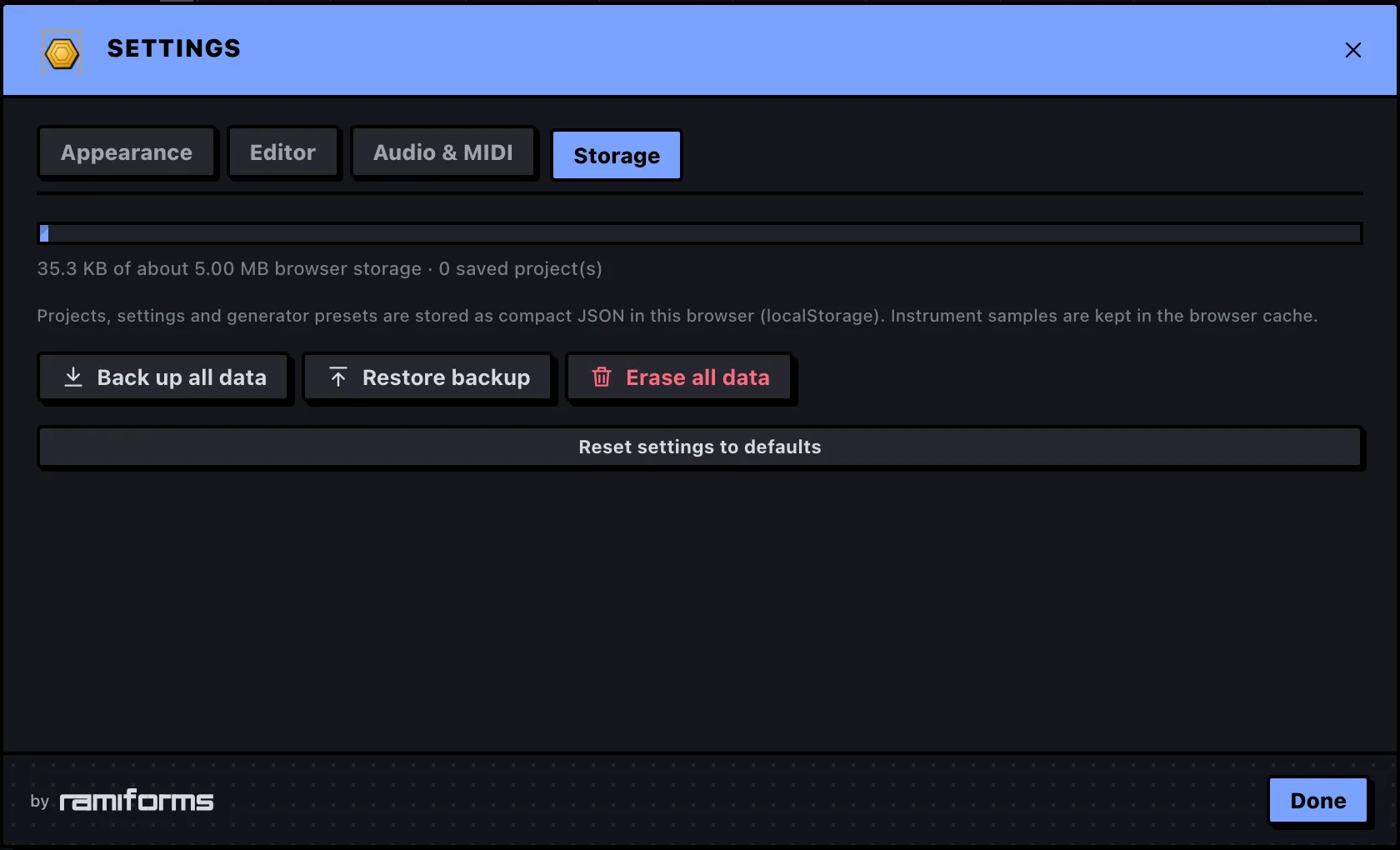
| Control | What it does |
|---|---|
| Usage | How much browser storage Hexagong uses. |
| Back up · Restore · Erase all data | Manage everything stored by the app. |
| Reset settings to defaults | Restores default settings. |
Keyboard shortcuts
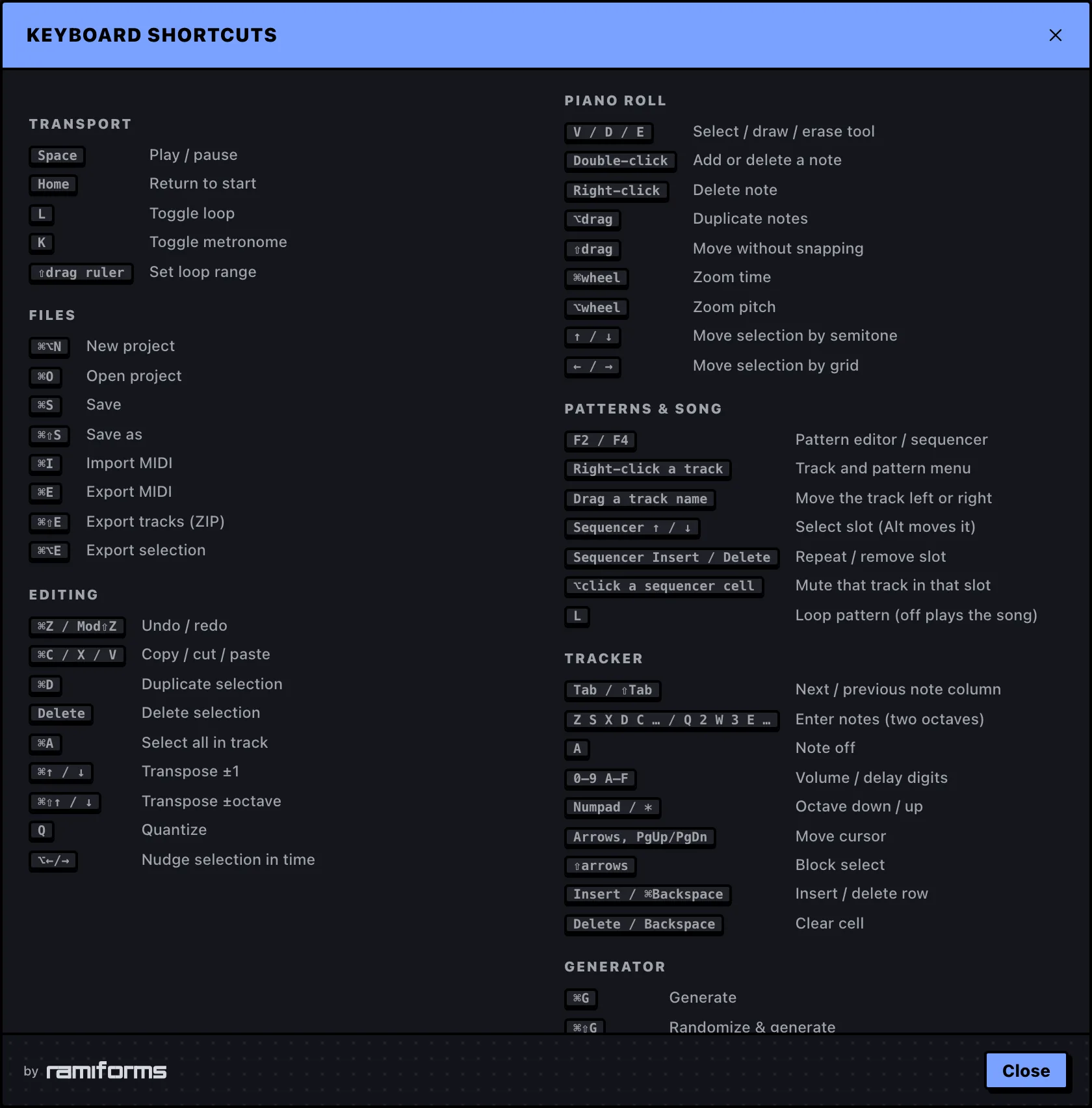
Press Shift ? in the app to see this list. On macOS use ⌘ where it says Ctrl. Browsers reserve a few combinations (such as Ctrl/⌘ N), so Hexagong uses alternatives like Ctrl/⌘ Alt N.
| Keys | Action |
|---|---|
| Space | Play / pause |
| Home | Return to start |
| L · K | Loop pattern · metronome |
| F2 · F4 | Pattern editor · sequencer |
| Alt 1 · Alt 2 | Piano roll · tracker |
| Alt [ · Alt ] | Hide/show side panels |
| Ctrl/⌘ G · Shift G | Generate · randomize & generate |
| Ctrl/⌘ Shift V | Create variation |
| Ctrl/⌘ Z · Shift Z | Undo · redo |
| Ctrl/⌘ C · X · V · D | Copy · cut · paste · duplicate |
| Ctrl/⌘ A · Shift A | Select all in track · all tracks |
| Ctrl/⌘ ↑/↓ (+Shift) | Transpose by semitone (octave) |
| Alt ←/→ | Nudge the selection in time |
| Q | Quantize |
| V · D · E | Piano-roll tools |
| Ctrl/⌘ = · − · 0 | Zoom in · out · to fit |
| Ctrl/⌘ S · Shift S · O | Save · save as · open |
| Ctrl/⌘ Alt N | New project |
| Ctrl/⌘ I · E · Shift E · Alt E | Import · export song · tracks (ZIP) · selection |
| Shift ? | Shortcut help |
Offline & installing
After the first visit, Hexagong works without a connection: the app, themes and your projects are stored locally. Sampled instruments are cached as you use them — or all at once from Settings → Audio & MIDI → Download all 128 instruments. Until a sample is available, notes play on the built-in synth.
To install it, use Install in the top bar (or your browser's install option). Installed, it opens .mid files directly. When a new version is available you'll see an Update prompt.
MIDI devices
In the right column's Sound output, press Enable MIDI devices and allow access. Then:
- Output: choose hardware or your system's General MIDI synth (on Windows, Microsoft GS Wavetable Synth is picked automatically) and set Sound source to MIDI output. Program, volume, pan and pitch bend are sent per track.
- Input: choose a controller to play through the active track; arm Step record in the transport to enter notes at the cursor (chords are entered together).
Tips & troubleshooting
- Generate keeps adding tracks? Use Replace all tracks; it clears the pattern first. Locked tracks are kept and new material goes beside them.
- Can't hear anything? Click once in the page (browsers need a gesture before playing audio), check Master volume, and try the built-in synth.
- Reproduce a result: lock the seed before generating.
- Storage full? Back up all data, then delete old projects in the projects dialog.
- Lost work? The working copy is restored automatically when you reopen the app.
The Hexagong plugin
Hexagong is also a plugin for your DAW: VST3, Audio Unit and LV2, for macOS, Windows and Linux. This guide covers the web app; the plugin has its own screens, and shares the same genres, scales and generators. Get the plugin on Gumroad.
| Feature | Web app | Plugin |
|---|---|---|
| Getting started | ||
| Where it runs | Any modern browser, or installed as an app | Inside your DAW as a plugin, or on its own as an app |
| Price | Free | A one-time purchase, on Gumroad |
| Making parts | ||
| Melody sources | 10, from a melodic walk to twelve-tone rows | 16, adding Lorenz, Rossler and Clifford attractors, three-body and Mandelbrot orbits, and a model trained on your MIDI |
| Variations | One at a time, with five techniques | Breeds over a thousand candidates and shows nine, with similarity scores, cross-breeding and a family tree |
| Presets | Saved projects; no preset library | 450 factory presets with search, tags, favorites and audition, plus your own |
| Editing and arranging | ||
| Note editing | A tracker and a piano roll with a velocity lane | None: parts are read-only previews, and you edit in your DAW |
| Song arrangement | Patterns and a sequencer | None: you arrange in your DAW. Change Over Time can render long sections with rising chaos and fills |
| Sound and MIDI | ||
| Timing | Its own transport, tempo and meter | Follows your DAW’s tempo, meter and transport |
| Sounds | 128 sampled General MIDI instruments, a built-in synth and a drum kit | A small preview synth, or any instrument in your DAW, with one MIDI channel per part |
| Getting MIDI out | Export the song, each track in a ZIP, one track, or the selection | Drag parts, variations, captures and renders straight into your DAW, or send MIDI live |
| Playing live | ||
| Keyboard | Play through a controller, and step record | Chord pads, phrase pads, chord follow, and a melody zone that snaps wrong notes to the scale |
| Automation | None | Eight macros and the main settings, automatable from your DAW, with MIDI learn |